
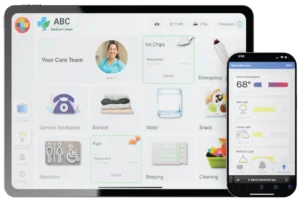


HallMonitor for Epic Monitor
Run Epic Monitor at every door on hardware that is UL certified and FDA registered, with a light your Epic rules control.


Hospitals with HallMonitor


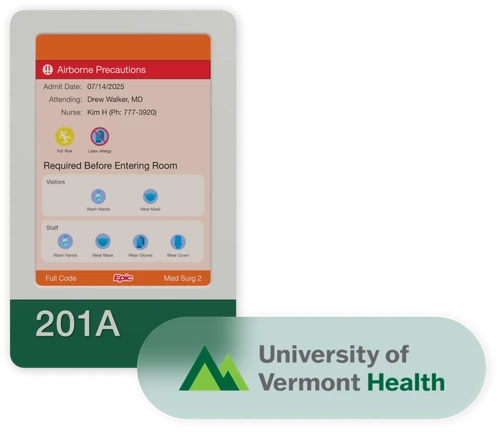

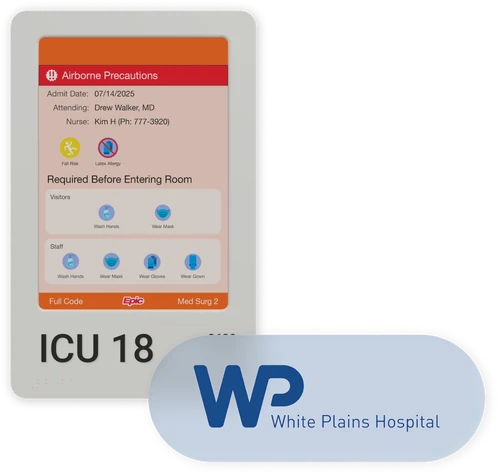


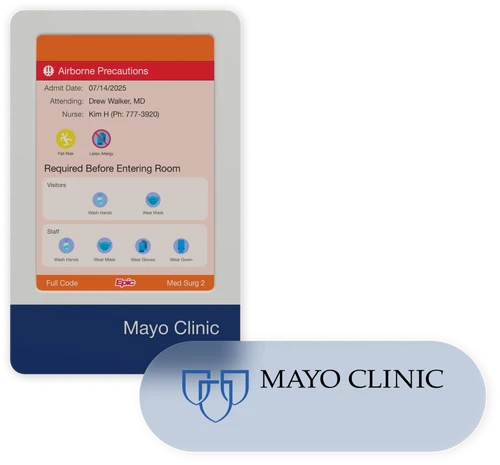

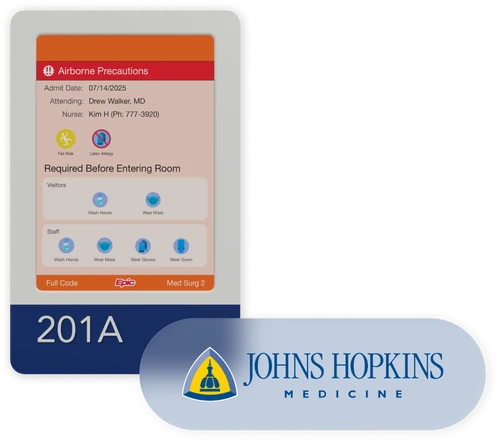


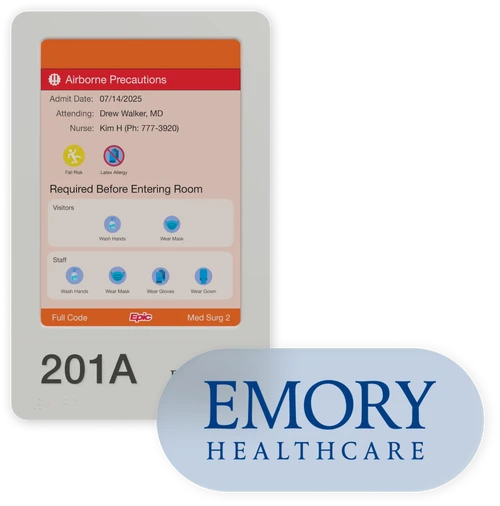

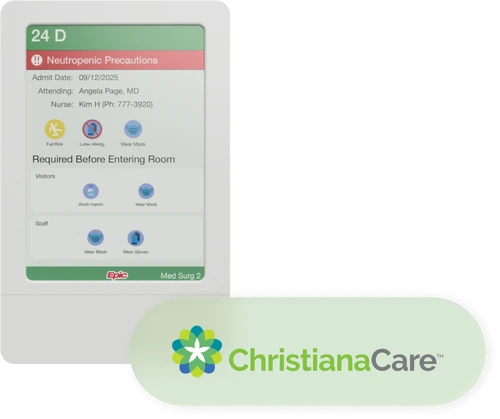


The only UL certified and FDA registered digital door sign for Epic Monitor.
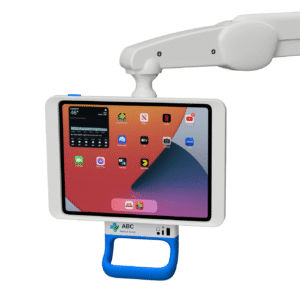
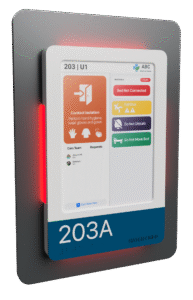
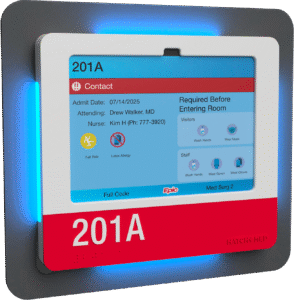
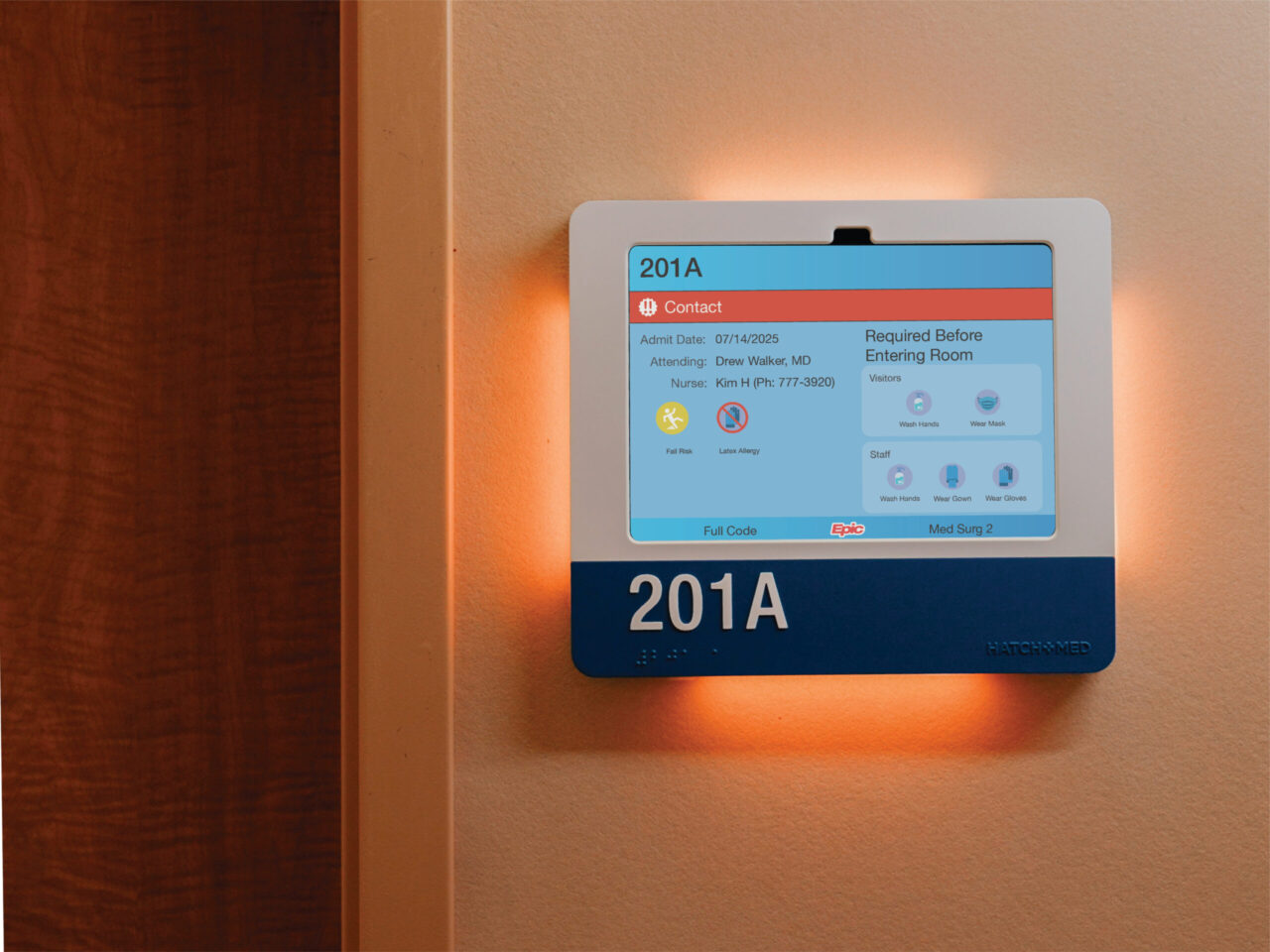
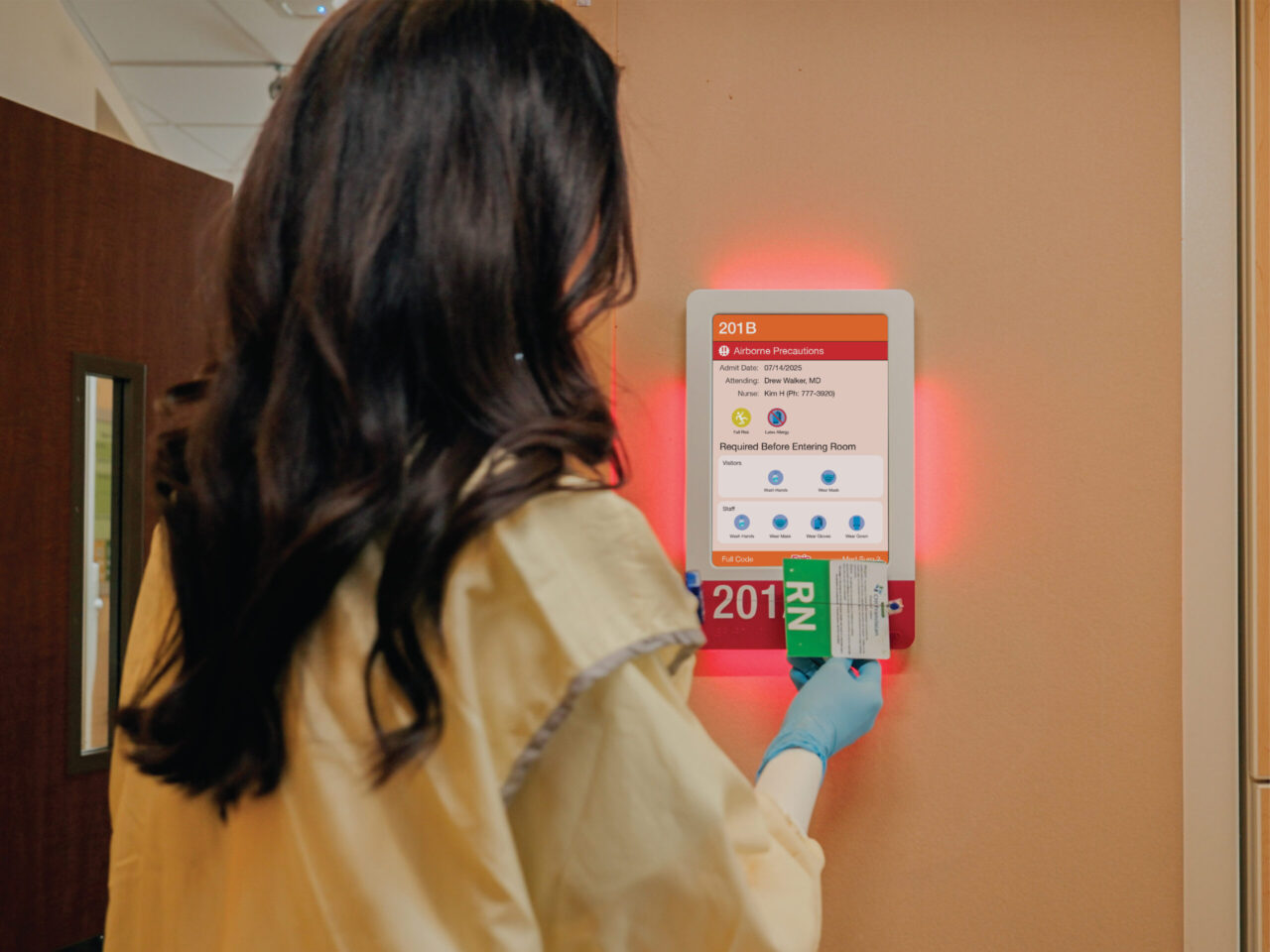
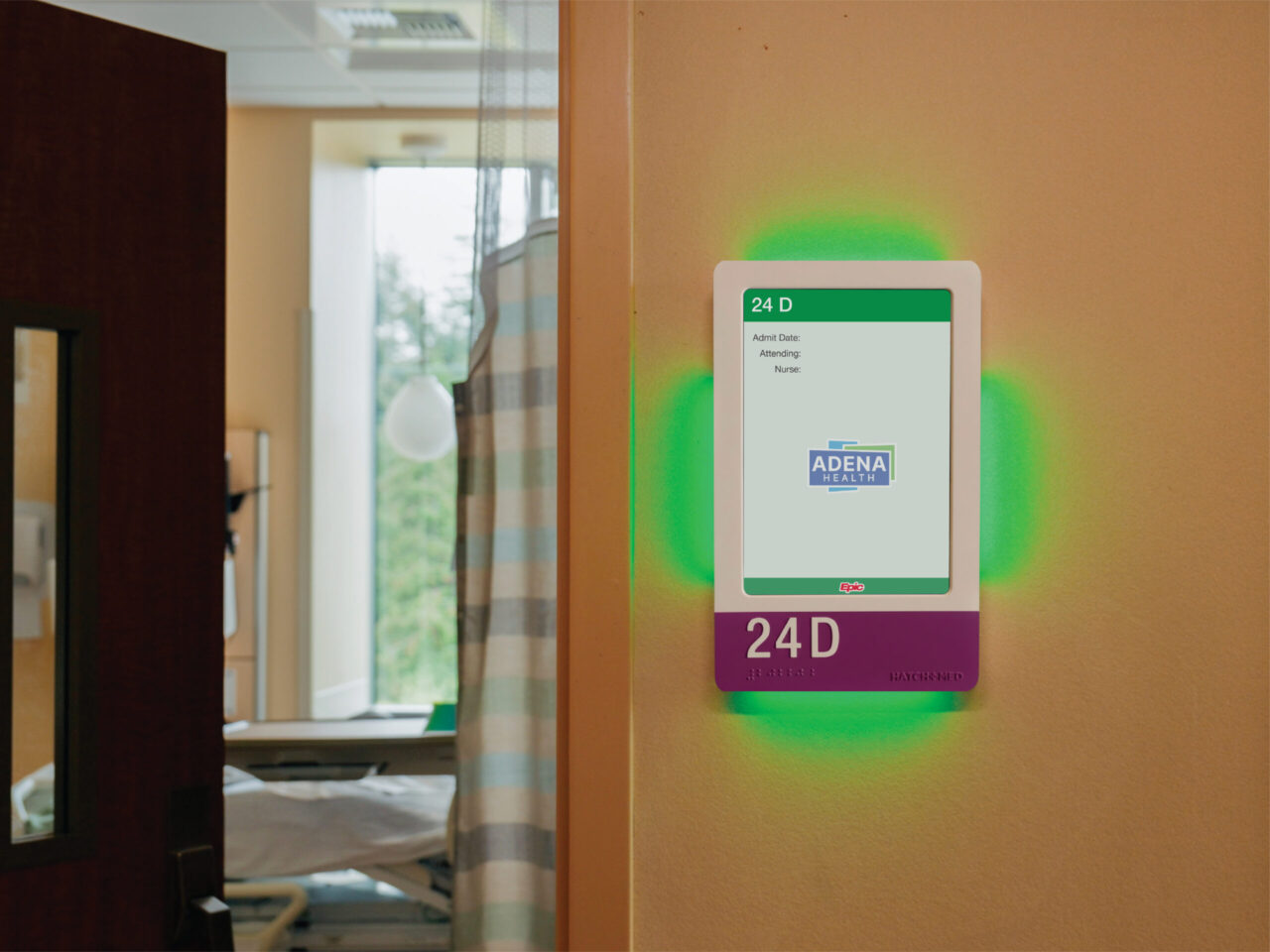
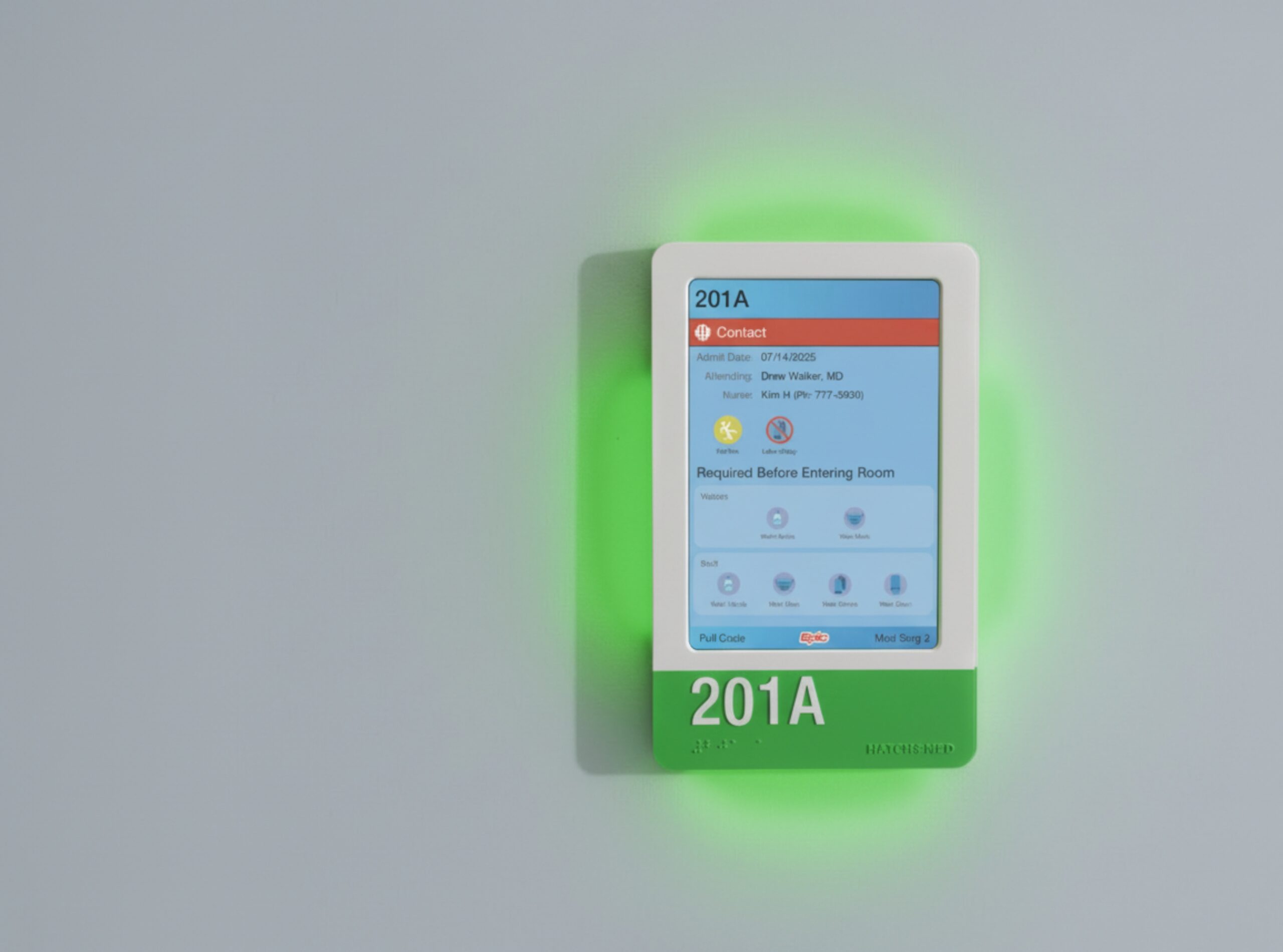
Healthcare-grade hardware with light on all four sides of the screen, so critical patient status is visible from down the hall.
Critical patient status, lit by your Epic rules
HallMonitor’s lights follow Epic Monitor’s Room Display theme color, which your Epic team sets through CER rules. When a patient’s status changes, the light changes with it, so staff can see it from down the hall.
No paper to replace and no signs to flip. Epic drives the light, and patient data stays in Epic.
Results with HallMonitor
On an average 40-bed unit, HallMonitor gave about 380 minutes a day back to bedside care.1
That’s time nurses used to spend keeping paper door signs current, about 2,300 staff hours a year.1
The hardware and software paid for themselves in about 10 months.1
Your numbers depend on your units and workflow.
1 Based on average customer deployments on standard-size hospital units. Directional; results vary with unit size and workflow.
Built for hospital IT, facilities and clinical leadership
HallMonitor is designed to meet the technical, regulatory and operational standards of modern health systems.
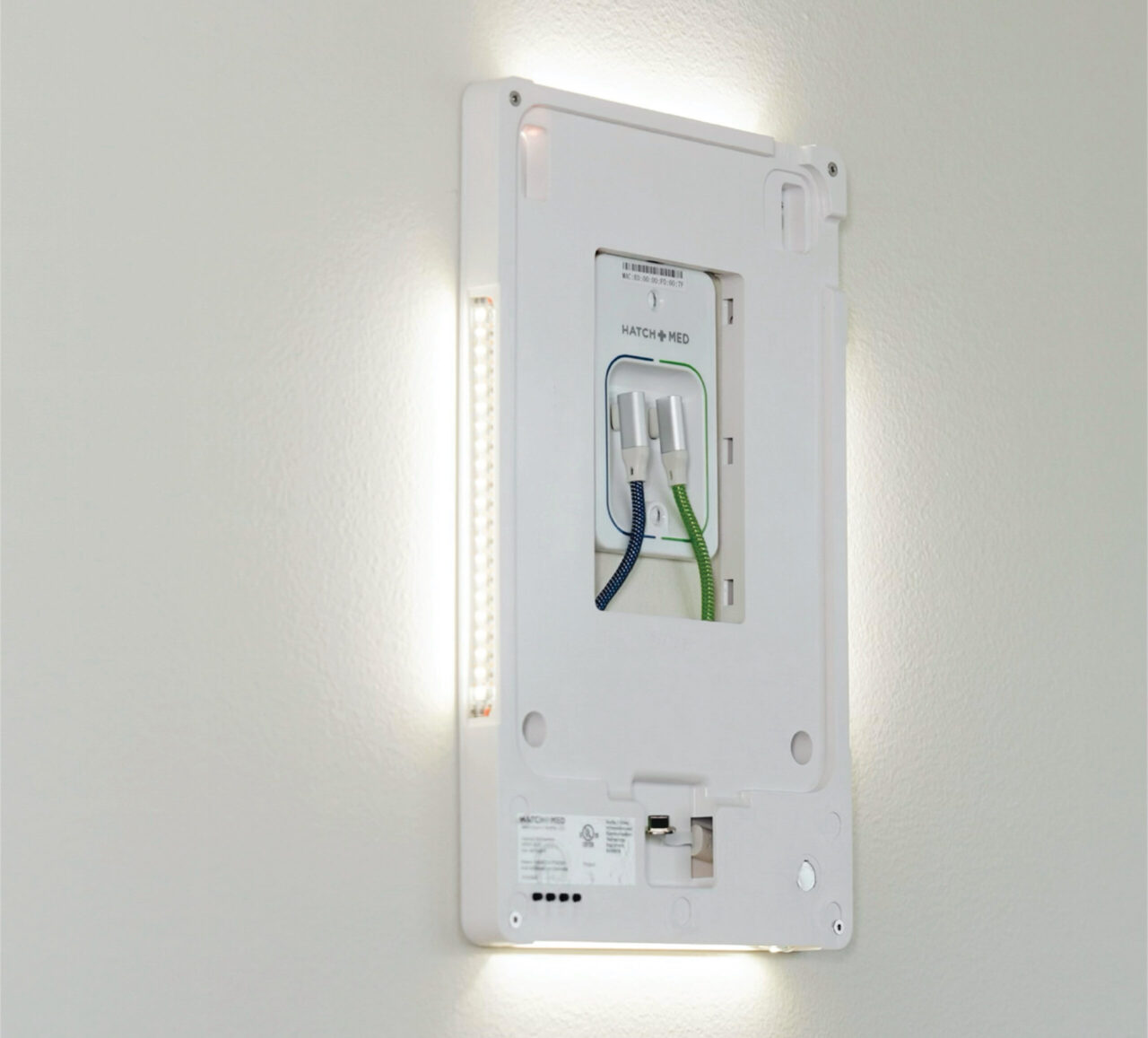

PoE+ power and wired Ethernet
One low-voltage PoE+ cable carries power and wired Ethernet, so critical patient information doesn’t depend on the iPad’s Wi-Fi.
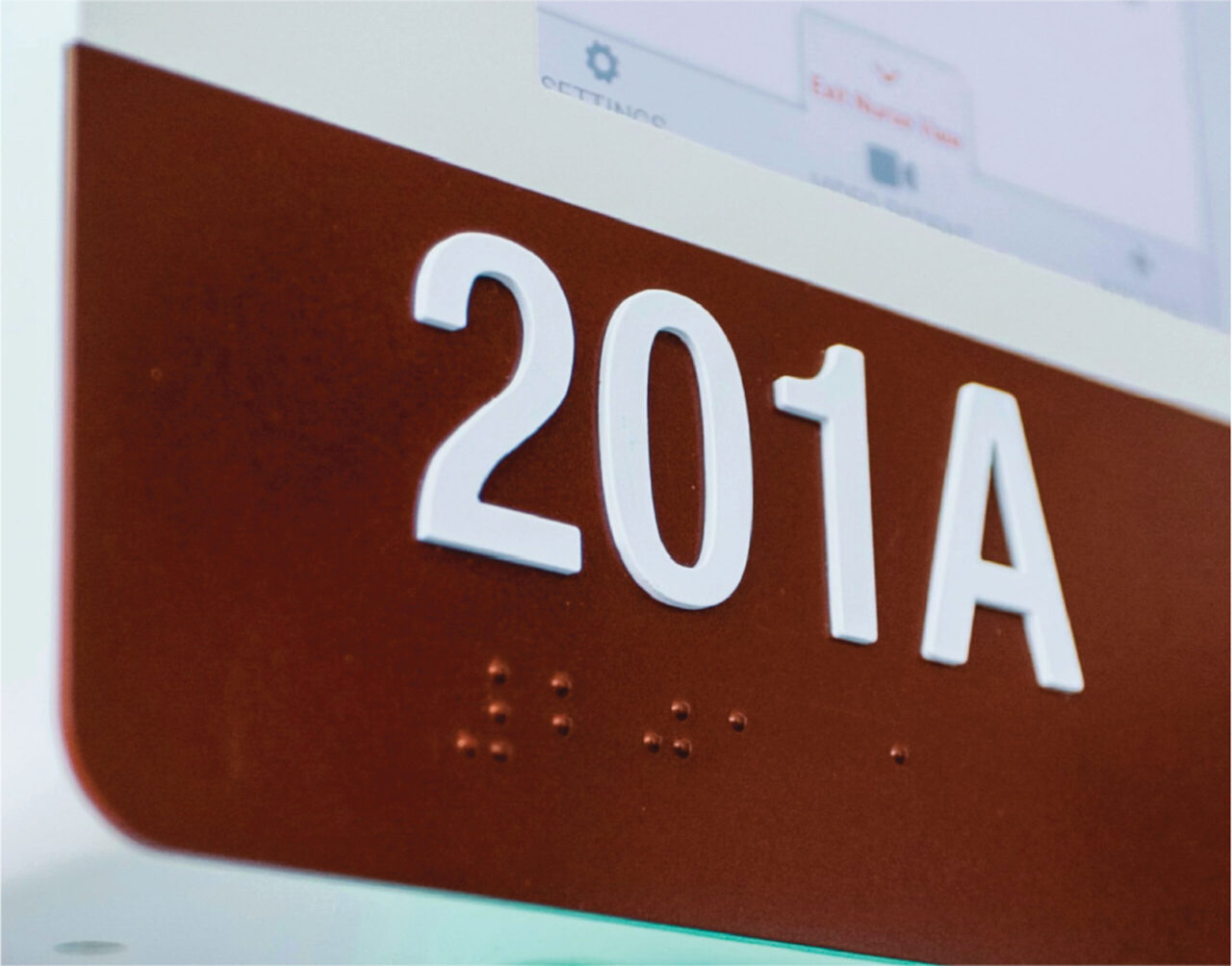

Room number and ADA Grade 2 braille
Raised room numbers and ADA Grade 2 braille, designed and manufactured to meet the 2010 ADA Standards for Accessible Design. With HallMonitor PLUS, the sign can replace the room’s ADA placard.
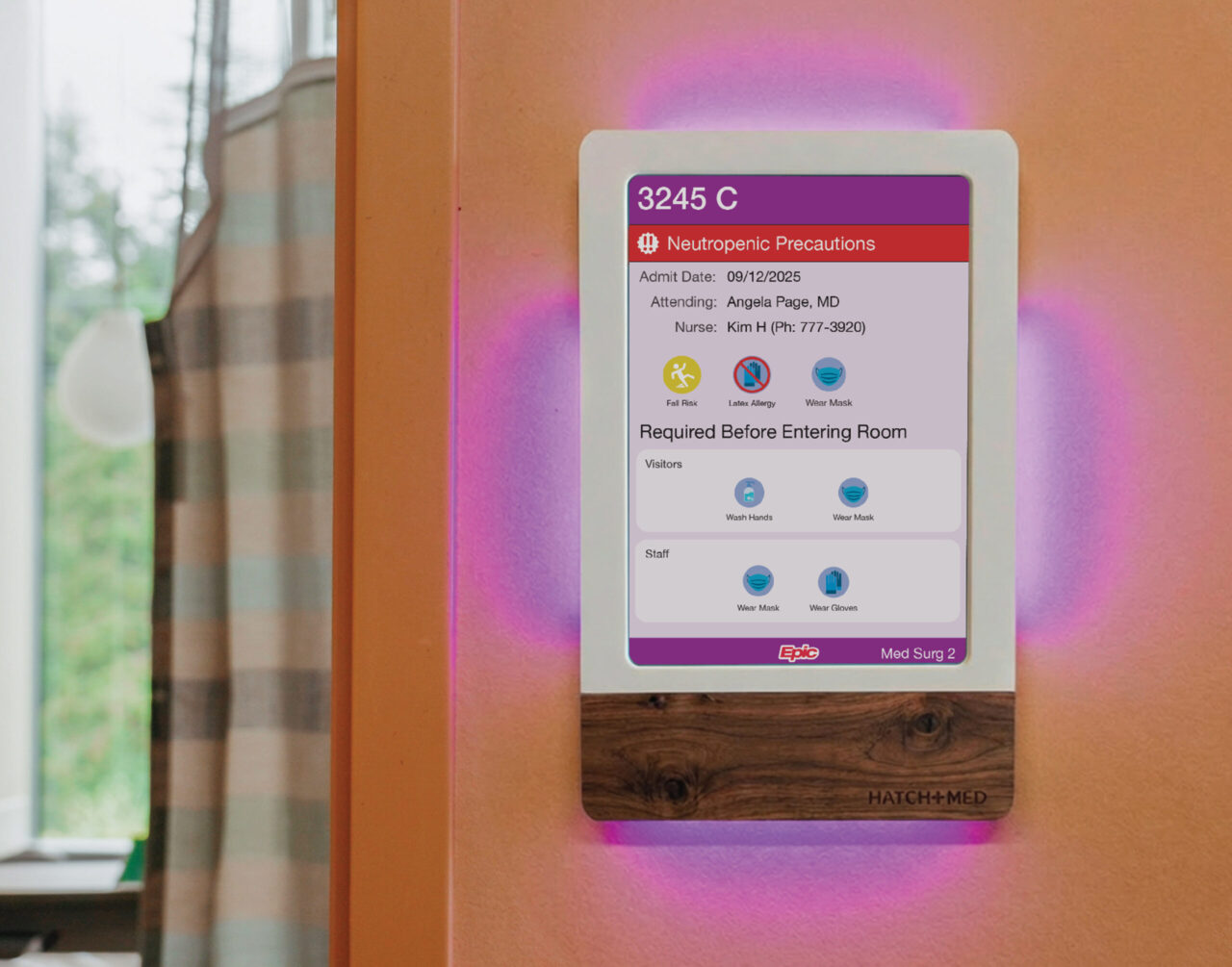

Colors and finishes
Choose from nine standard accent finishes, or match any paint color, so each sign fits your facility.
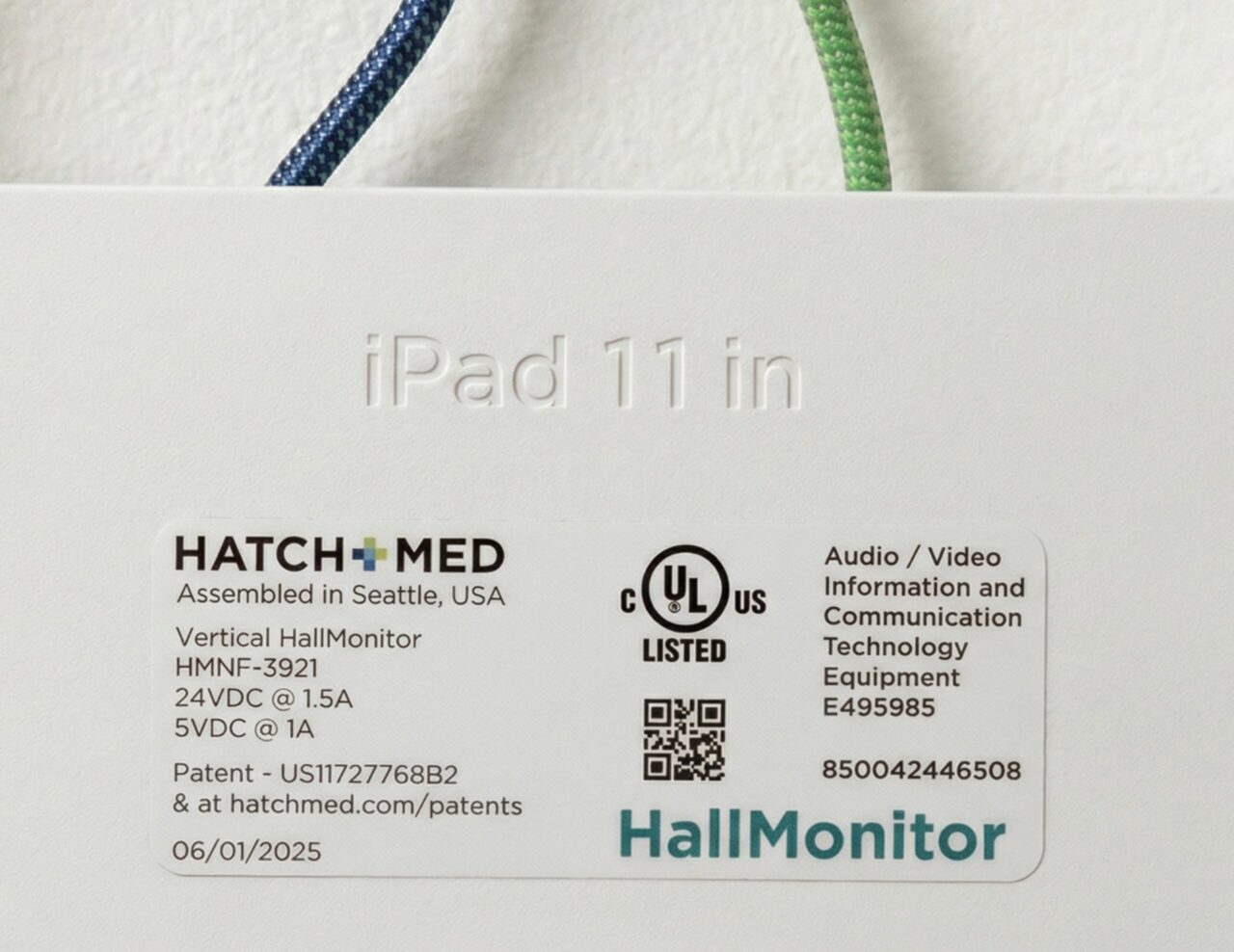

UL certified and FDA registered
HallMonitor is the only clinical door sign that is both UL certified and FDA registered.
Enhance your HallMonitor with bed integration.
Show live bed data from Hillrom, Stryker, LINET and other connected beds right outside the room, such as bed exit, brakes and lowest position. The door sign becomes part of your bed safety workflow.
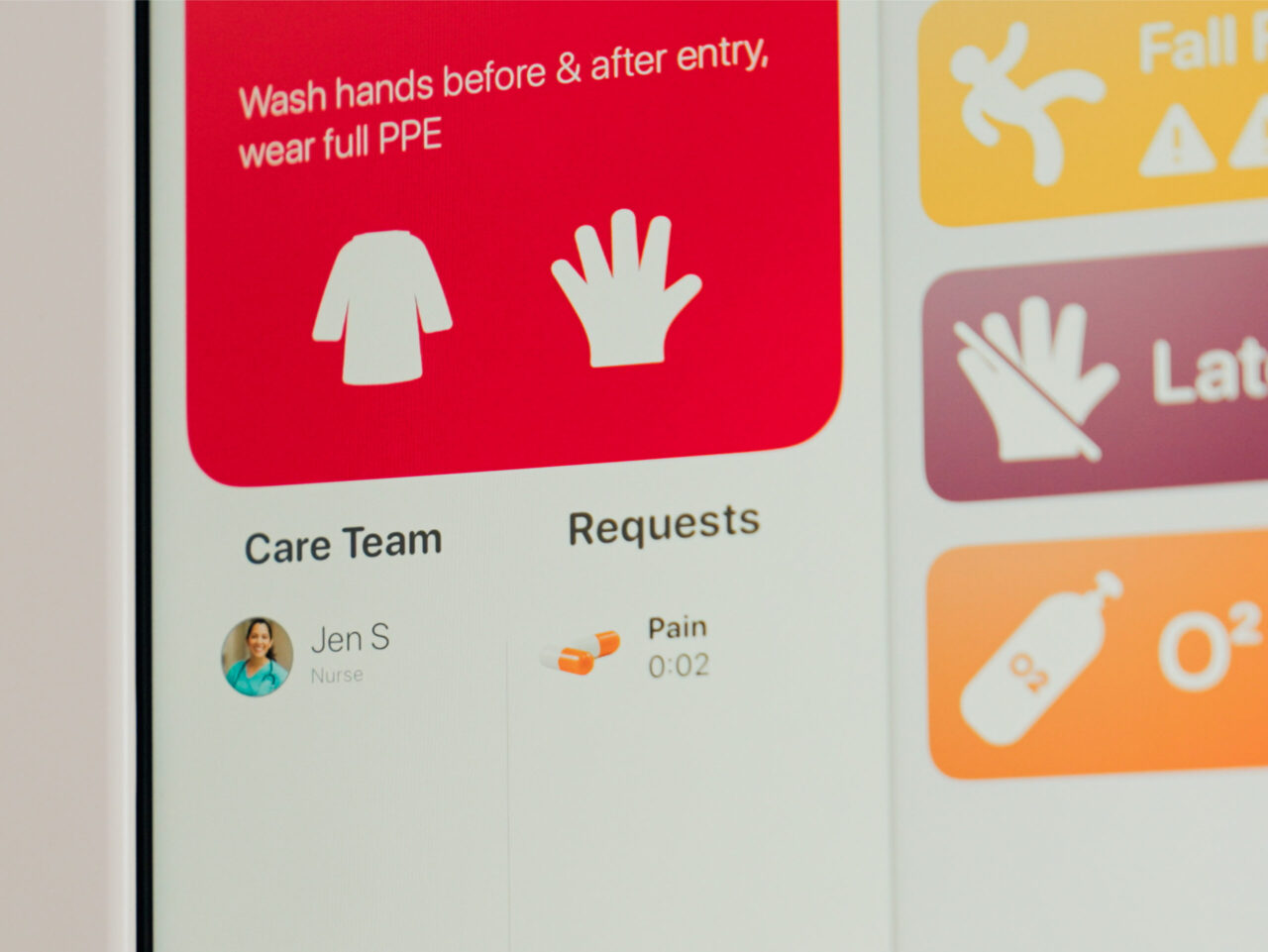
Recreate your hospital's approved signs on screen, with their wording, colors and instructions, so the door stays familiar to staff while the information stays current.
Bring nurse call activity to the door. Patient requests sync both ways with your nurse call system, and the assigned care team shows by role and name.
These features come with HatchMed software, which runs on the same HallMonitor. You can move from Epic Monitor to it later and keep every sign on the wall.
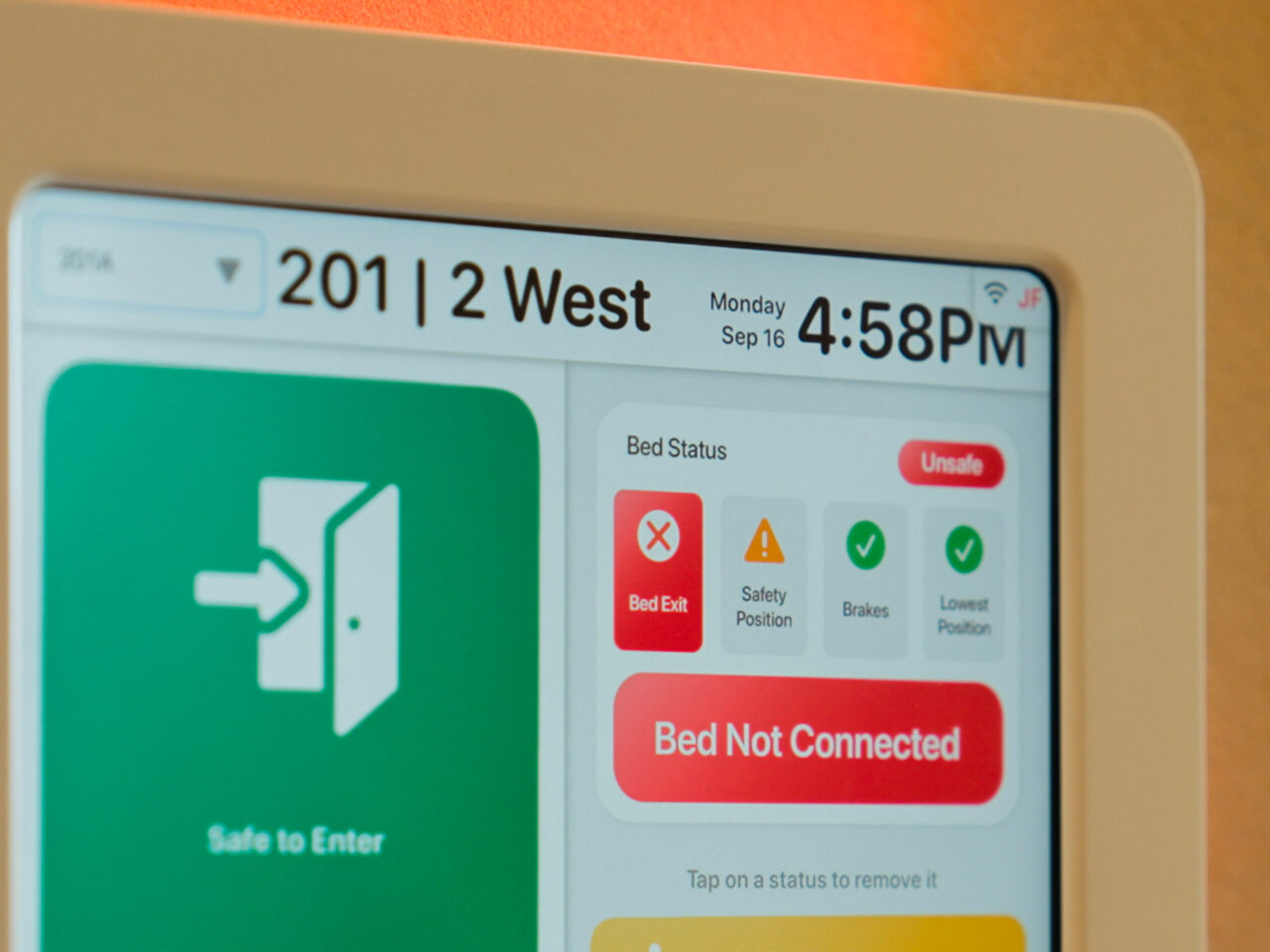
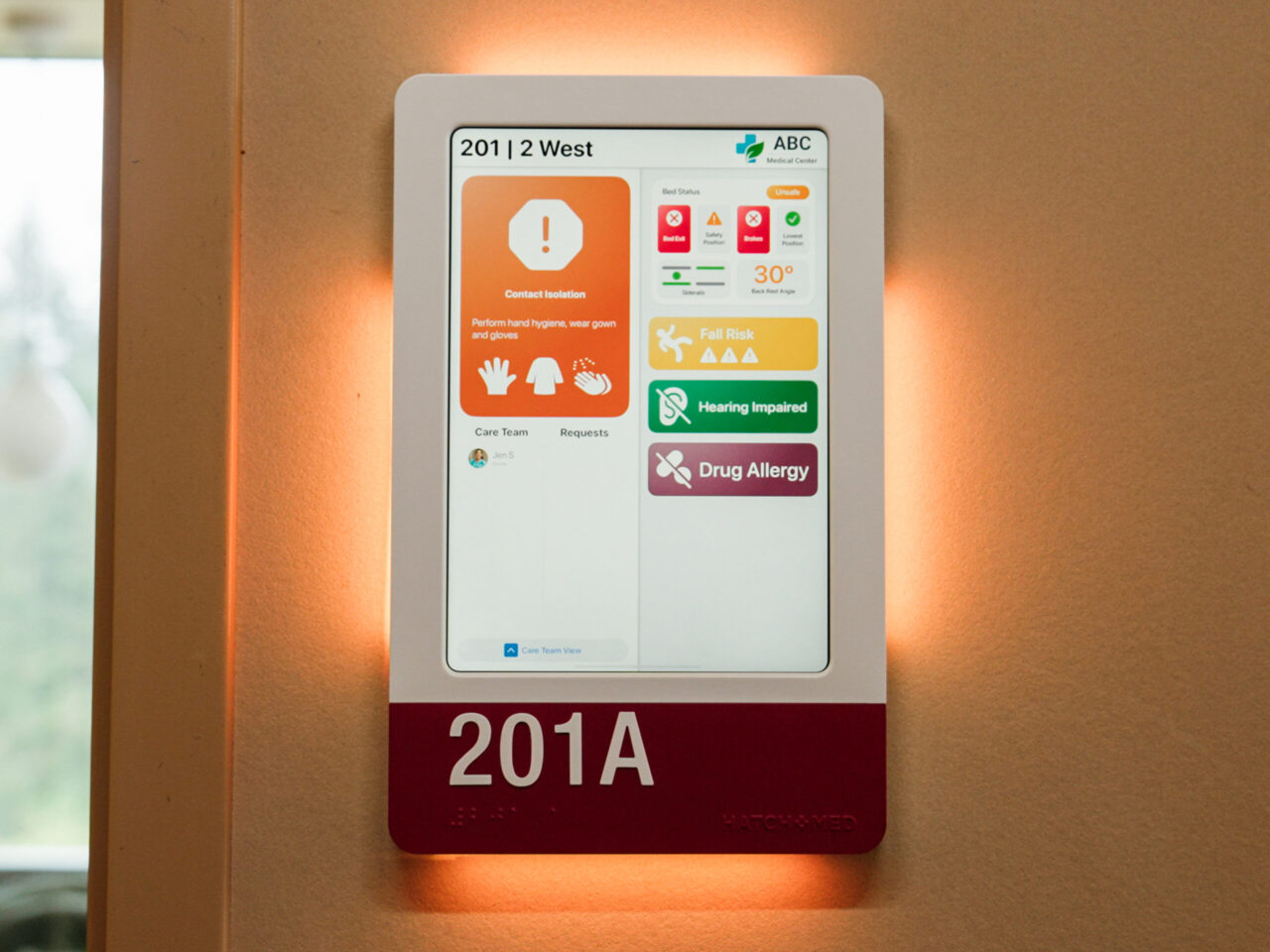
Connect HallMonitor to the whole patient room
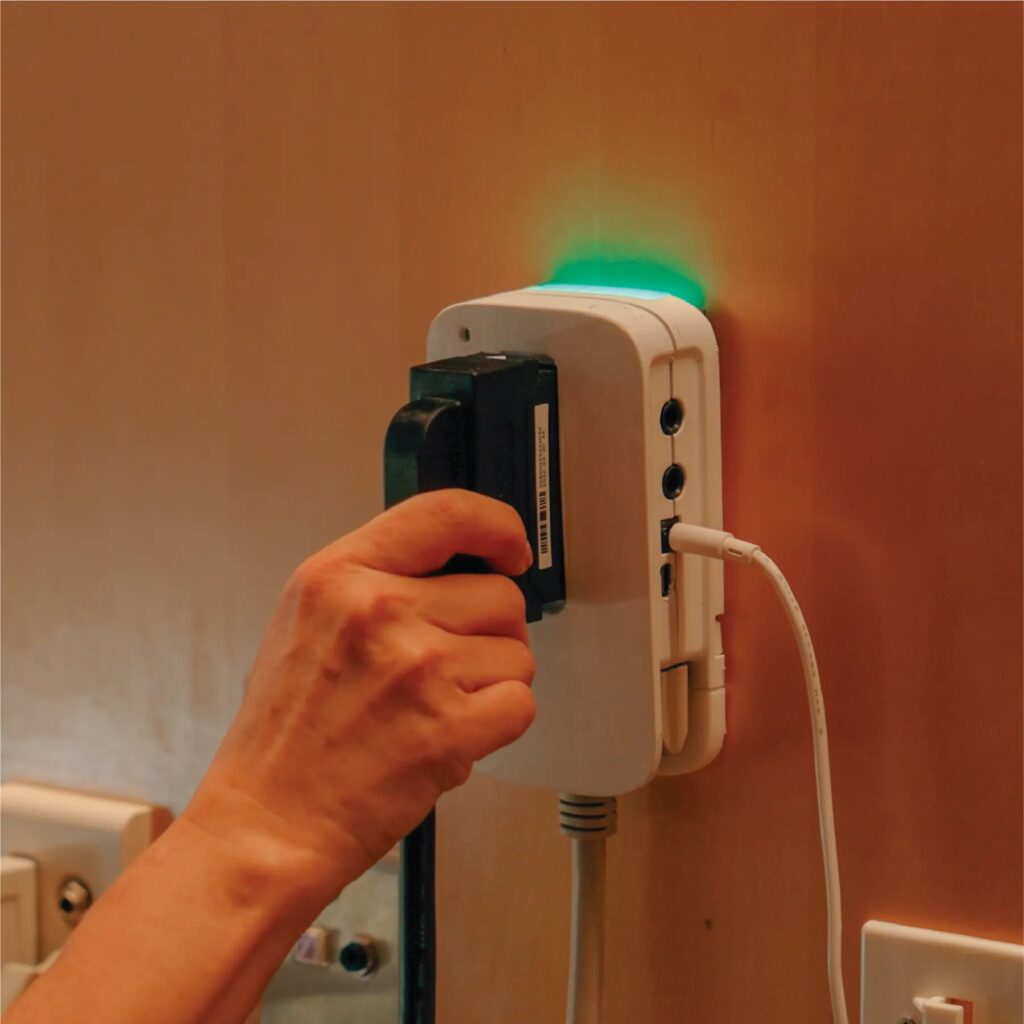
HallMonitor brings critical information to the hallway. HighLightX connects the rest of the room: it shows whether the bed is connected to nurse call, and links the room’s nurse call, room and TV systems through one device.

What's included
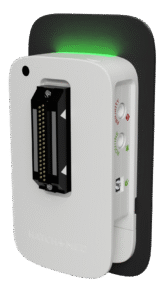
- HallMonitor digital door sign
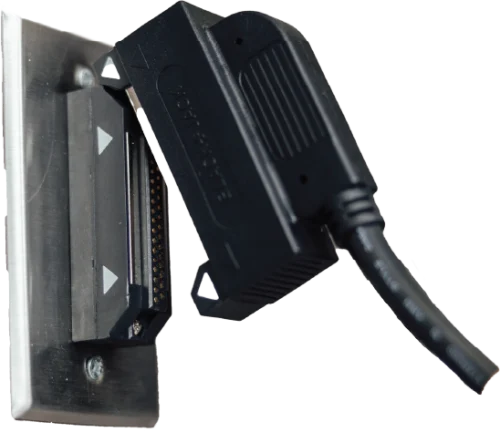
- PoE+ splitter
- Drywall and stud mounting hardware
iPads are bought separately.
HallMonitor specs
Size and compatibility
- Dimensions
- Portrait: 8.07" W x 12.77" H x 0.91" D
Landscape: 11.43" W x 10.00" H x 0.93" D - Supported iPads
- 10.9" and 11" iPad, 10th and 11th generation (A16)
- Weight
- 2.0 lb without iPad, 3.1 lb with iPad
Power and data
- Power and data
- PoE+ (802.3at): power and wired Ethernet over one cable. Or a 24V power supply with iPad Wi-Fi.
- Power draw
- Peak ~25W, standard 12 to 15W.
LEDs and RFID reader
- Illumination
- RGBW LED panels on all four sides. With Epic Monitor, they show the Room Display theme color.
- RFID badge reader (optional)
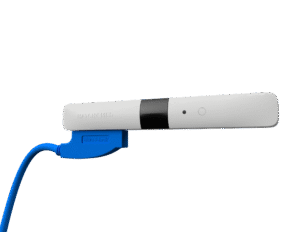
- HID OMNIKEY module. Reads most staff and ID badges.
Materials and care
- Materials
- UV-resistant painted ABS body, Lexan illumination panels
- Colors
- Two-tone body and accent plate. Nine standard finishes, or custom paint matching.
- Cleaning
- Standard hospital surface wipes
Regulatory and warranty
- Regulatory
- UL/cUL IEC 62368-1:2014. FDA Registered Medical Device, Class 2 Exempt.
- Patents
- US20210051223A1, US20220051532A1
- Warranty
- One-year standard warranty. Extended Warranty and the Product Upgrade Plan are available.
Installation and resources
Install steps
1
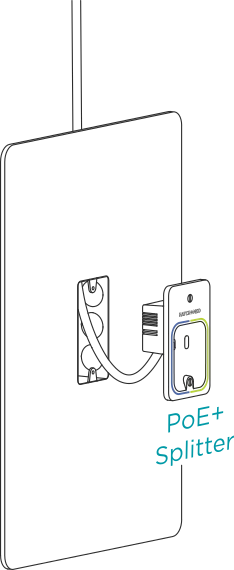
Mount the splitter
Place the PoE+ splitter about 55″ above the floor, with room for the enclosure to fit over it. If code requires, use a 2-3/4″ deep single-gang back box in a 2″ x 3″ cutout.
2
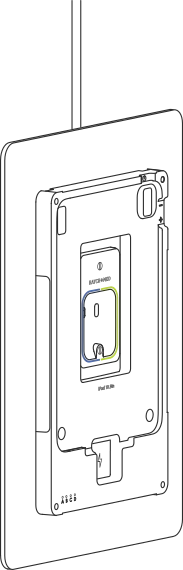
Connect and mount the back panel
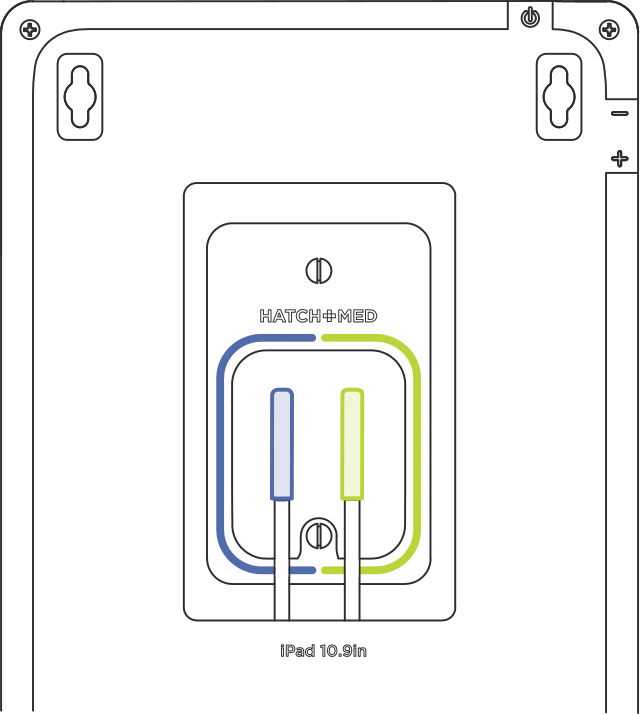
Plug the PoE+ cable into the splitter and secure the splitter to the wall. Mount the back panel over it with the splitter centered, using wall anchors in drywall.
3
Connect the lights
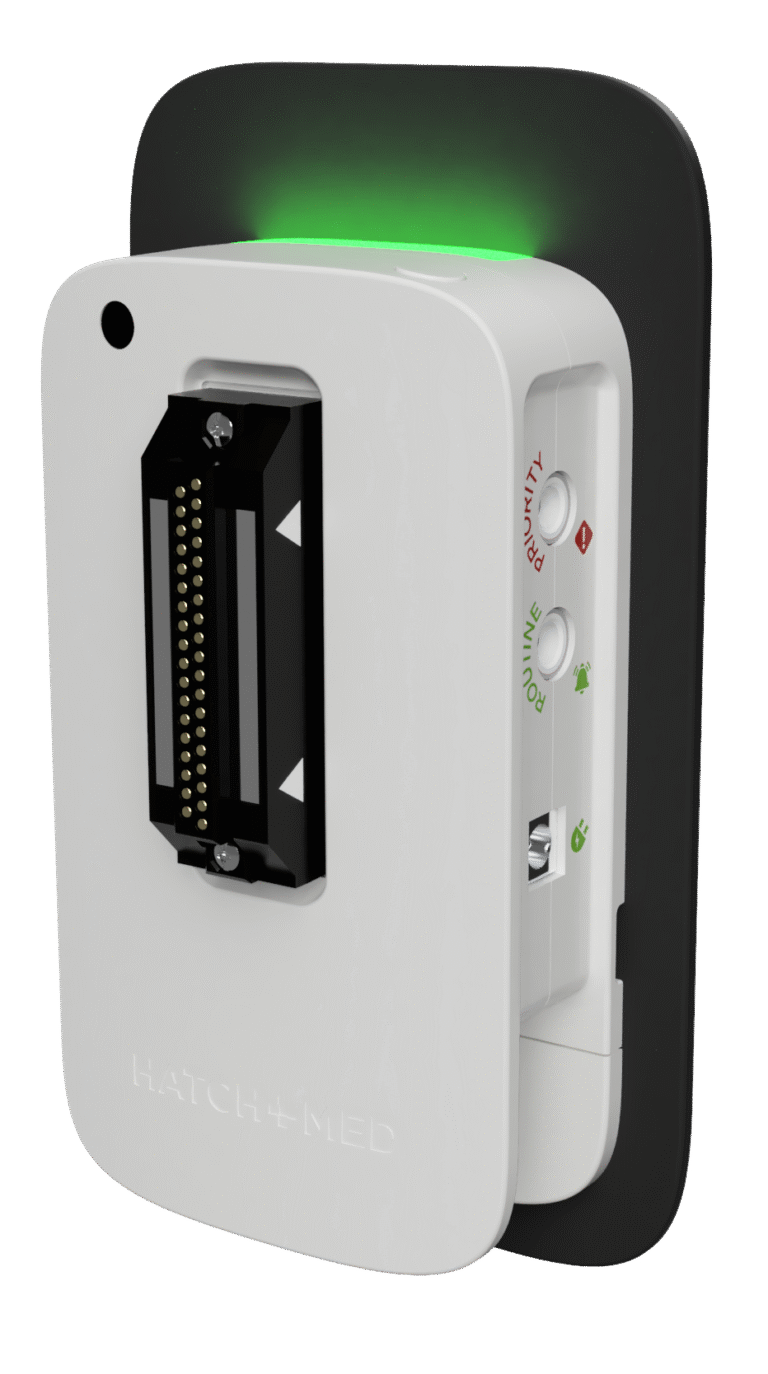
Plug the blue USB-C cable into the blue port and the green cable into the green port. The lights glow soft white.
4
Add the iPad and close it up
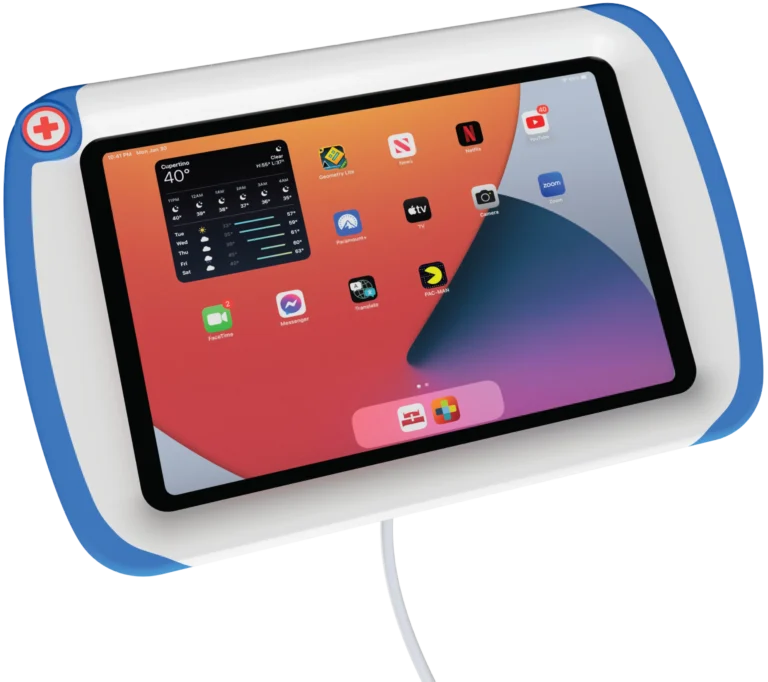
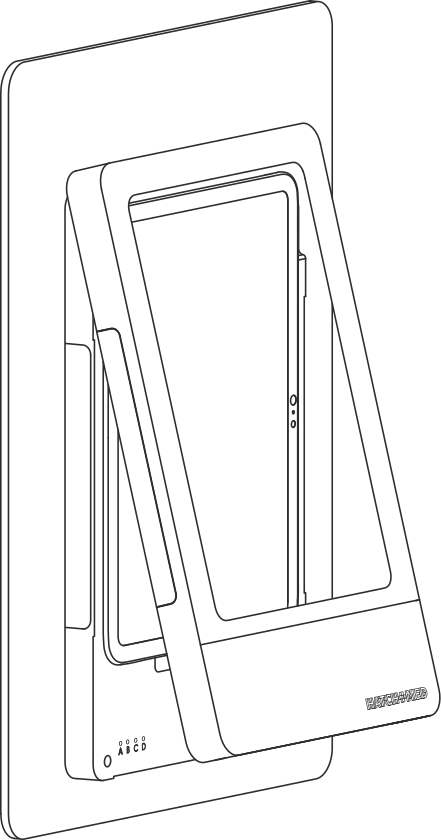
Press the iPad in and connect the charging cable. Slide the front cover on and secure it with the two screws at the bottom.
Network setup
Each HallMonitor runs on one PoE+ switch port, so set every port up the same way and test one sign before install day.
Switch port
- PoE+ (802.3at), at least 30W per port
- LLDP: Off
- Force PoE+ on every port. On Cisco, use two-event classification.
- Save to the startup config so it survives a power cycle
Splitter light
- Solid blue: ready
- Solid red: PoE only. Set the port to PoE+.
- Off or slow red blink: contact techsupport@hatchmed.com
Test one sign first
- Plug in the splitter. The light turns blue.
- Connect the iPad. It charges and goes online, and the lights glow soft white.
- Leave it running for 24 hours.
Send us your switch make and model and we’ll send its settings. Non-PoE installs run on AC power with Wi-Fi.
Epic Monitor LED setup
HallMonitor’s lights mirror the Room Display theme color. Epic sends HallMonitor the color over USB whenever it changes, so there’s nothing to configure on the HatchMed side, and all patient data and rules stay in Epic.
| Epic version | With HallMonitor |
|---|---|
| Earlier than May 2025 | Not compatible. Upgrade Epic first. |
| May 2025 or August 2025 | Compatible with special updates (SUs). Your Epic Technical Services contact identifies which ones. |
| November 2025 or later | Compatible by default. No special updates needed. |
Build CER rules
- CER rules are your own if, then and else criteria on almost any part of a patient’s chart.
- They set the Room Display theme, and the theme sets the lights.
- Most sites start with an isolation order, high fall risk or severe allergies.
- Start simple, confirm the color changes end to end, then add rules.
Deploy Epic Monitor by MDM
- Follow your organization’s standard app deployment steps.
- Epic recommends MDM over installing on each iPad, mainly for the environment configuration.
If the lights are wrong
- Open Epic Monitor and watch the LEDs.
- Any response, even going dark as the app opens, means the hardware works and the color comes from the CER build. Work with your Epic rep on that build.
- No response, even after a power cycle? Confirm PoE+ power reaches the sign.
- Still stuck? Contact techsupport@hatchmed.com or (877) 427-0911.
Epic’s guide for the rules: Configure the System to Dynamically Change the Room Display Theme, Galaxy document ID 3463910 (needs an Epic customer login).
Epic and Epic Monitor are registered trademarks of Epic Systems Corporation.
Downloads
HallMonitor with Epic Monitor guide
How Epic Monitor runs on HallMonitor and drives the lights.
Installation guide
Mounting, power and setup, step by step, for installers.
PoE+ switch setup guide
Setting every switch port to PoE+, with a Cisco example and splitter light checks.
Epic Monitor LED setup guide
Epic version check, CER rules for the theme color and deploying Epic Monitor by MDM.
HallMonitor PLUS guide
Specs, finishes, mounting and the base and PLUS options.
Epic and Epic Monitor are registered trademarks of Epic Systems Corporation.
Your HallMonitor, your way.
Configure my HallMonitorReady to see HallMonitor with Epic Monitor?
If you’re evaluating digital door signs or planning an Epic Monitor rollout, book a demo and see HallMonitor running Epic Monitor.
Epic and Epic Monitor are registered trademarks of Epic Systems Corporation.
Not using Epic? HallMonitor works with any EMR that sends HL7. Learn more about HallMonitor
Frequently asked questions
Something we didn’t cover? Call 844-428-2463 or email info@hatchmed.com.
Is patient data sent to the HallMonitor enclosure?
No. Epic Monitor runs on the iPad, and your Epic team sets the rules in Epic. The iPad sends the enclosure only light changes, never patient information or the rules behind them. Epic stays the source of truth.
Can we customize the LED colors?
Yes. Your Epic team sets the colors through Epic’s CER rules, which set the Room Display theme color. Your team decides what triggers each color and can change it as workflows change.
Which Epic versions are supported?
Epic May 2025 or later. The May and August 2025 versions need a special update, which Epic identifies, and November 2025 and later work by default. Epic Monitor deploys to the iPads through your MDM.
What happens when a new iPad comes out?
The enclosure has a modular USB-C design, so it can be upgraded as iPads change. HallMonitor has a one-year standard warranty, and the optional Product Upgrade Plan includes one upgrade within its three-year term.
Do we buy iPads separately?
Yes. HallMonitor holds the 10.9-inch and 11-inch iPad, 10th and 11th generation (A16). iPads are bought separately, so your IT team keeps control of the fleet, MDM enrollment and refresh cycles.
What is the RFID badge reader for?
The optional RFID reader lets staff sign in at the door with the badge they already carry. It’s an HID OMNIKEY module and reads most staff and ID badges.