

Bed & Nurse Call Connectivity

Digital Signage

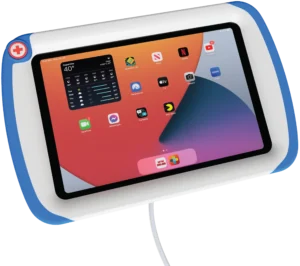
PillowCase iPad case

PillowCase
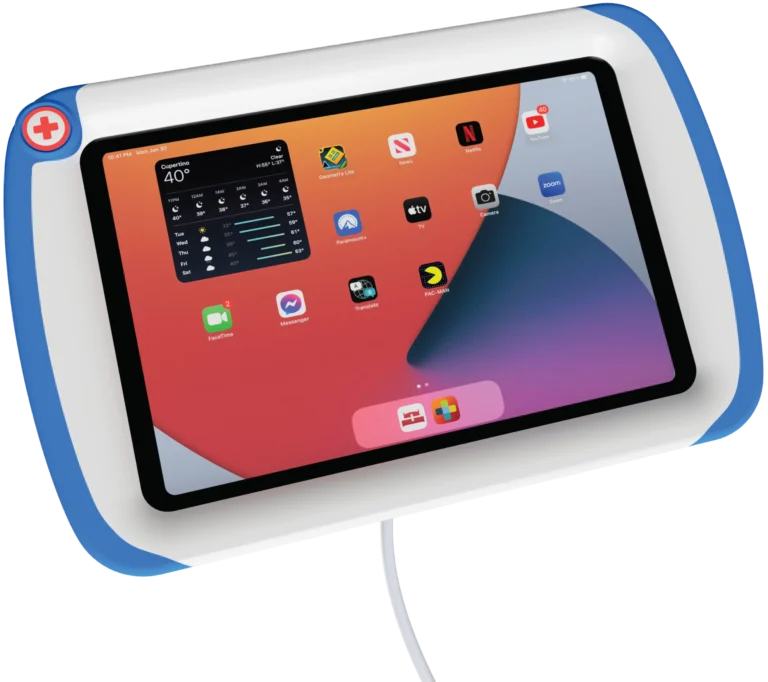
Nurse call connected iPad case

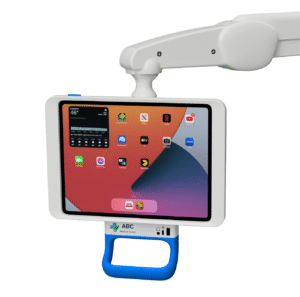
PadLock bedside iPad case

PadLock
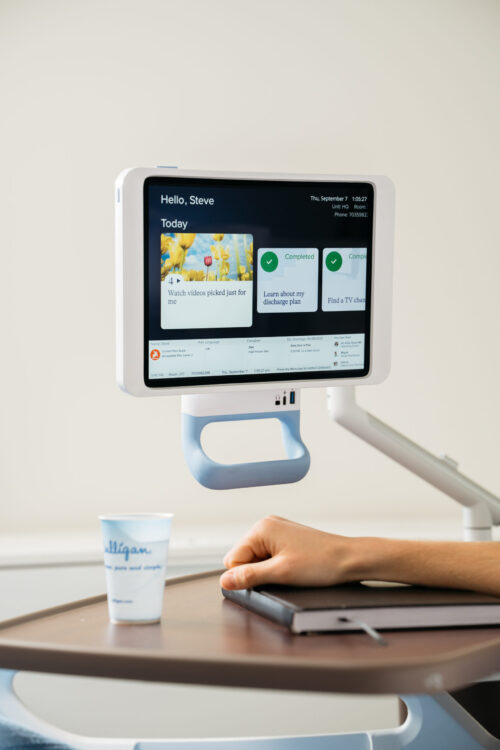
Floating Bedside iPad Case

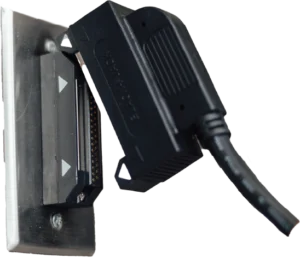
BlackJack magnetic bed cable

BlackJack
Magnetic bed cable

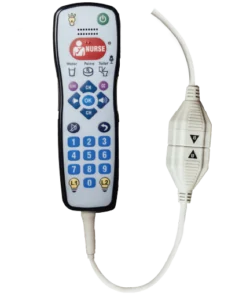
SnapJack magnetic pillow speaker cable

SnapJack
Magnetic pillow speaker cable

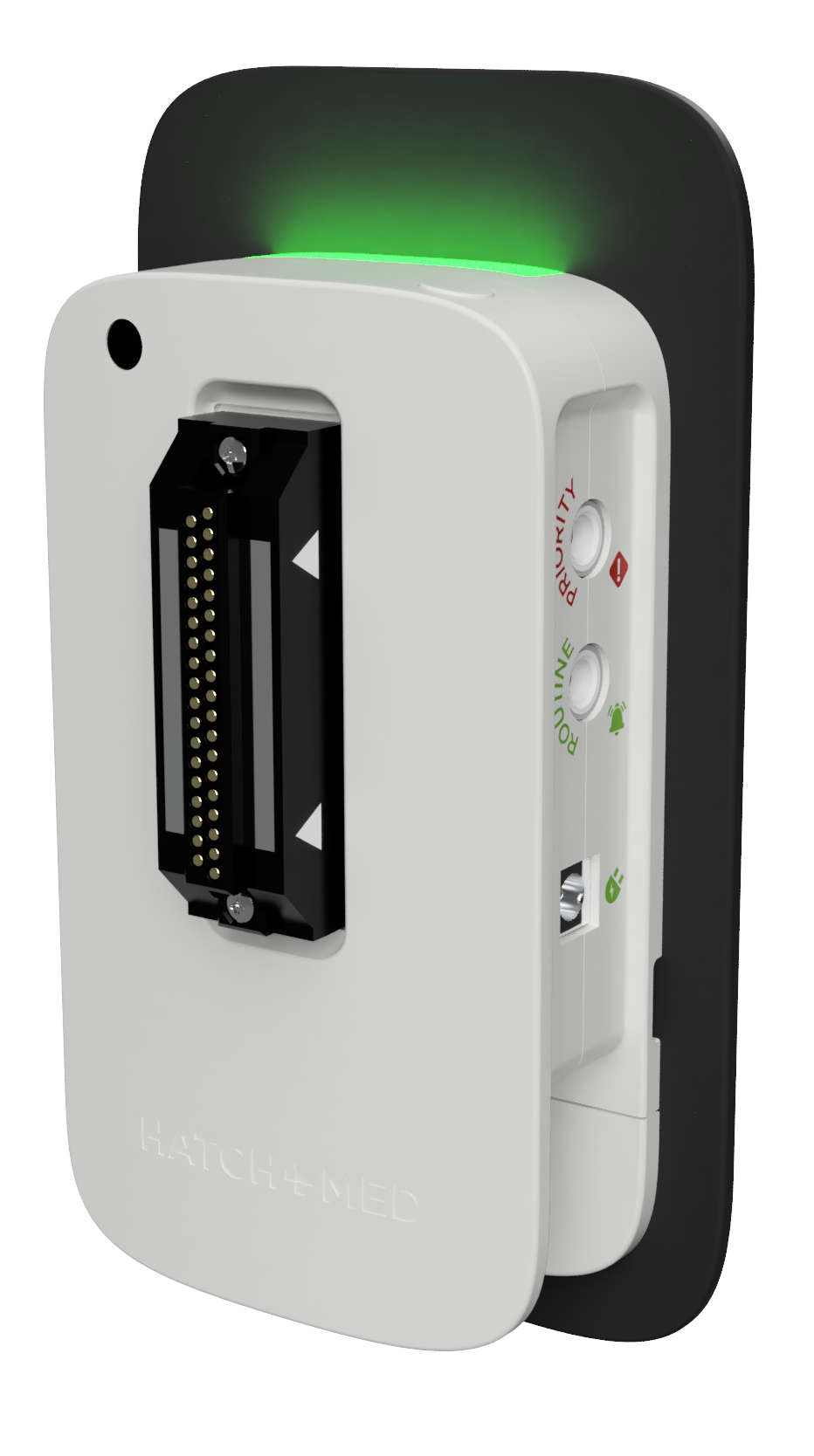
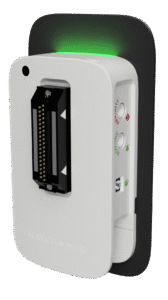
HighLight bed connection status hub


Bed Connection Status

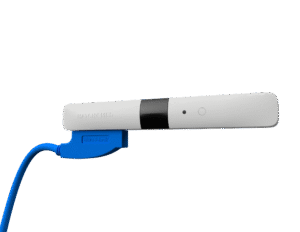
BlueJack wireless bed connectivity

BlueJack
Wireless Bed Connectivity

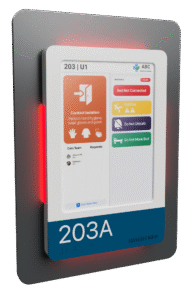
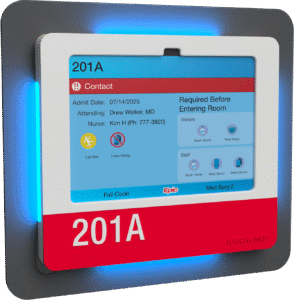
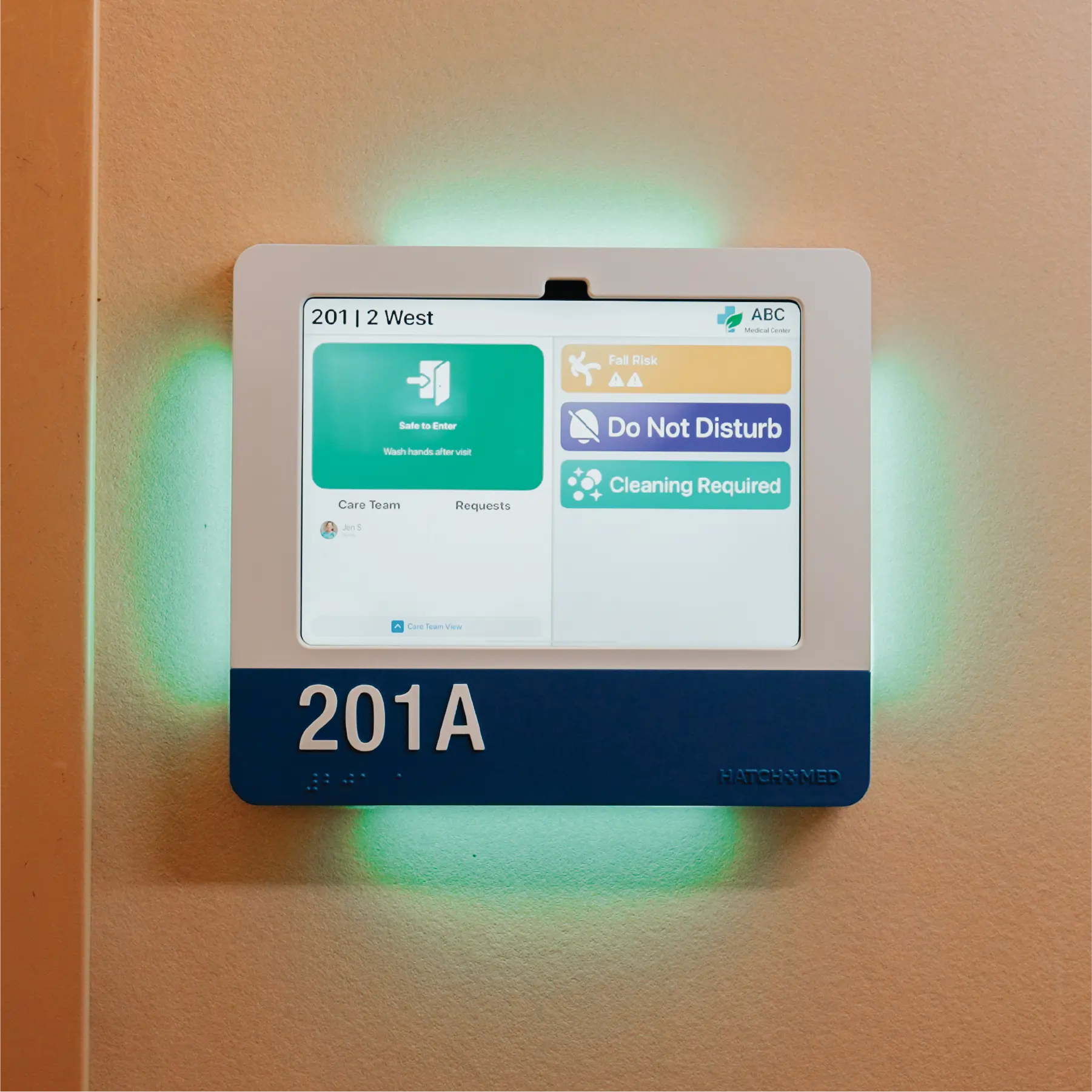
HallMonitor digital door sign

HallMonitor with HatchMed software
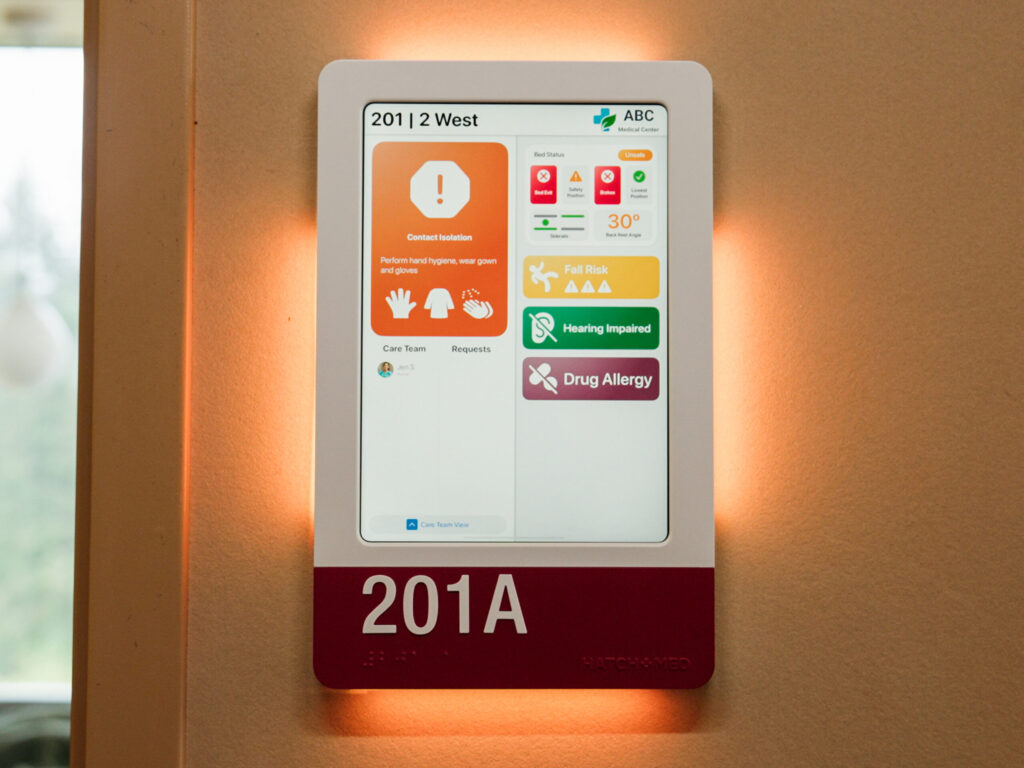
Personalized patient precautions & bed data

HallMonitor with Epic Monitor

HallMonitor with Epic Monitor
Native integration for contextual illumination

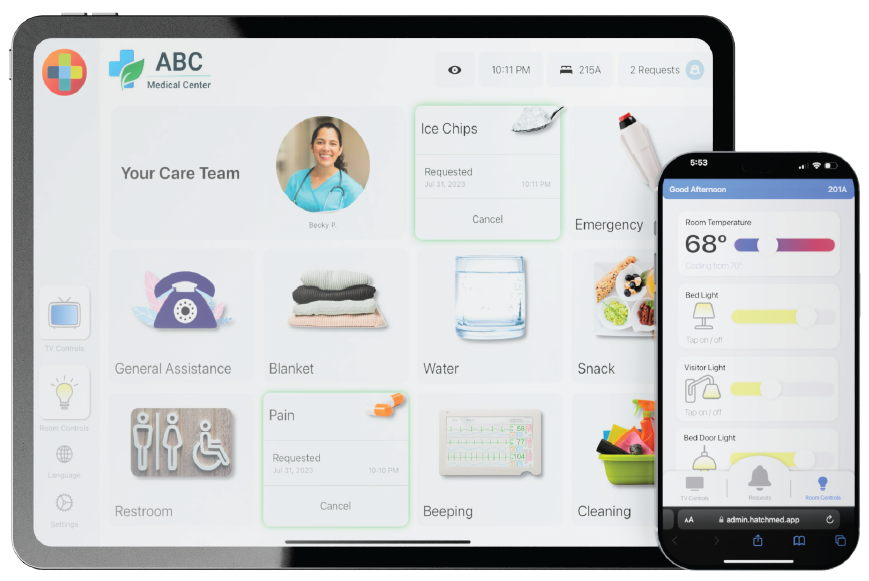
ComCierge

ComCierge
BYOD & hospital owned device compatible

HallMonitor: The contextual display for hospital rooms.

HallMonitor is a digital door sign that brings what your EMR, nurse call and beds already know to the door, with a light staff can read from down the hall.

Patient context before you enter

With HatchMed’s ComCierge software, rules combine information from your EMR, nurse call system, and connected beds into room priorities and staff workflows. Staff can spot rooms that need attention and check precautions before entering, helping them work efficiently and keep patients safe.

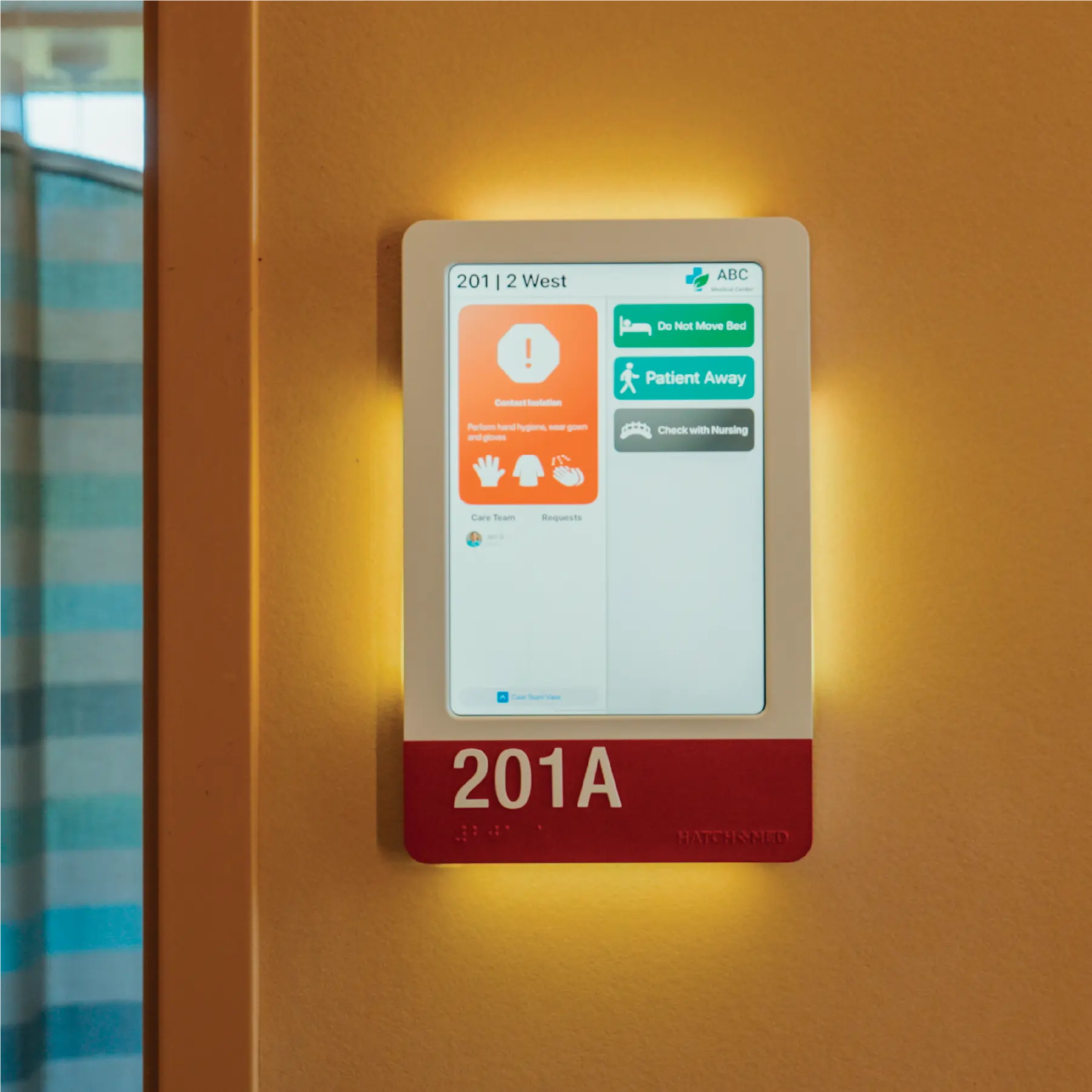
A HallMonitor sign for room 201A, lit orange, showing the full HatchMed software screen: contact isolation, bed status, fall risk and other precautions.

Patient and room information

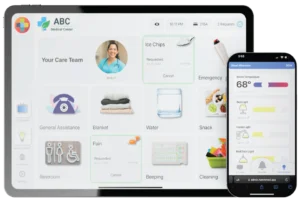
HatchMed software brings precautions, nurse call activity, and connected-bed information onto the screen.

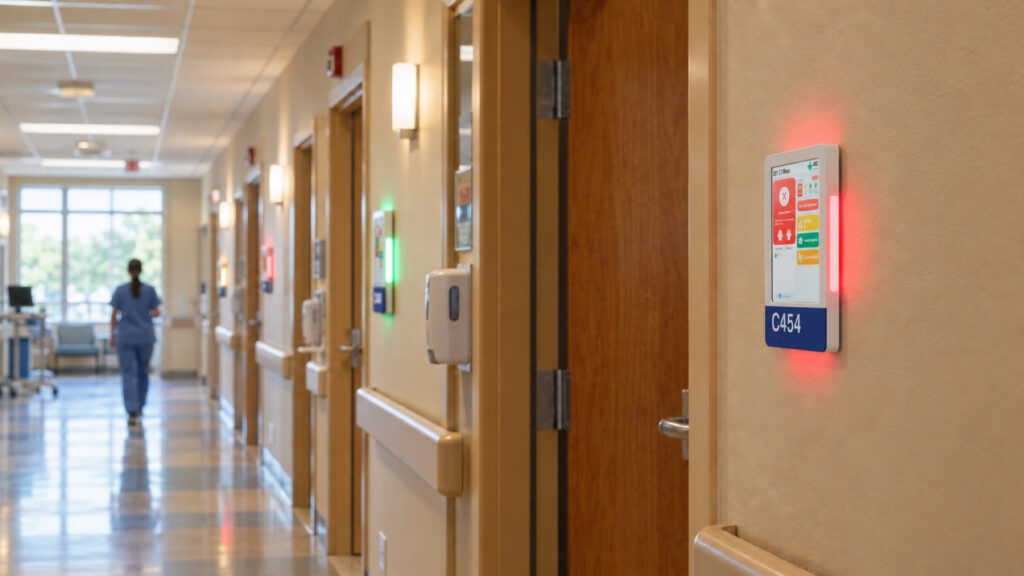
A HallMonitor sign glowing red outside an isolation room as a clinician walks down the hallway.

Room priorities, visible down the hall

Configure the lights around the conditions that require staff attention, with colors and patterns suited to each unit.

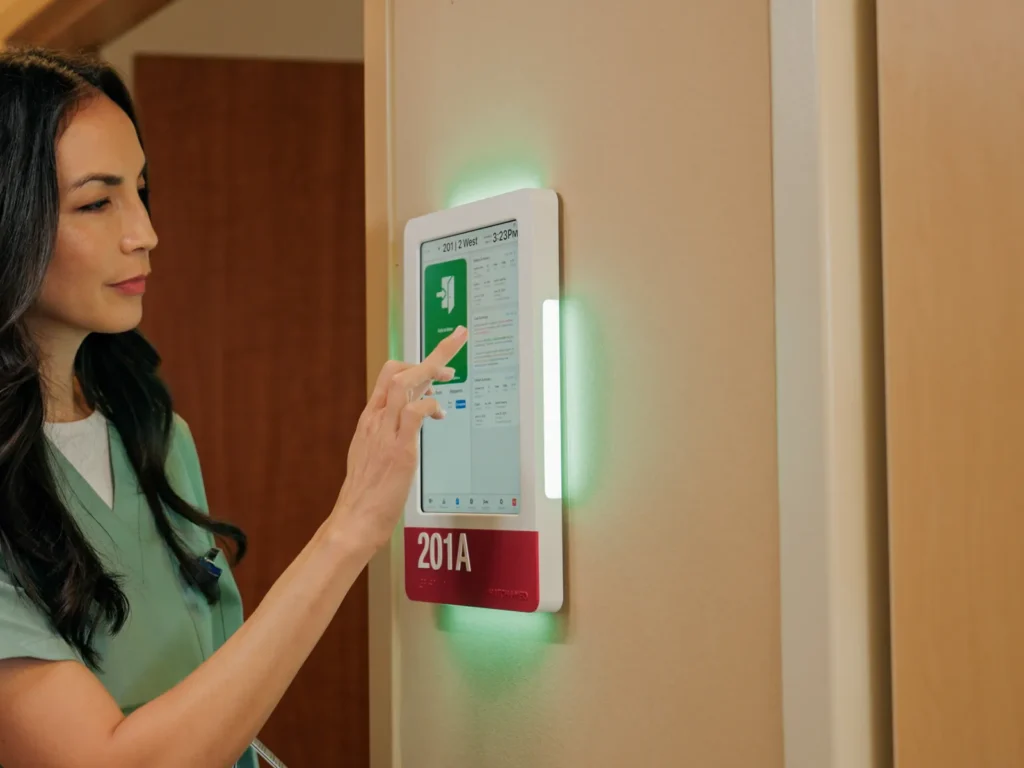
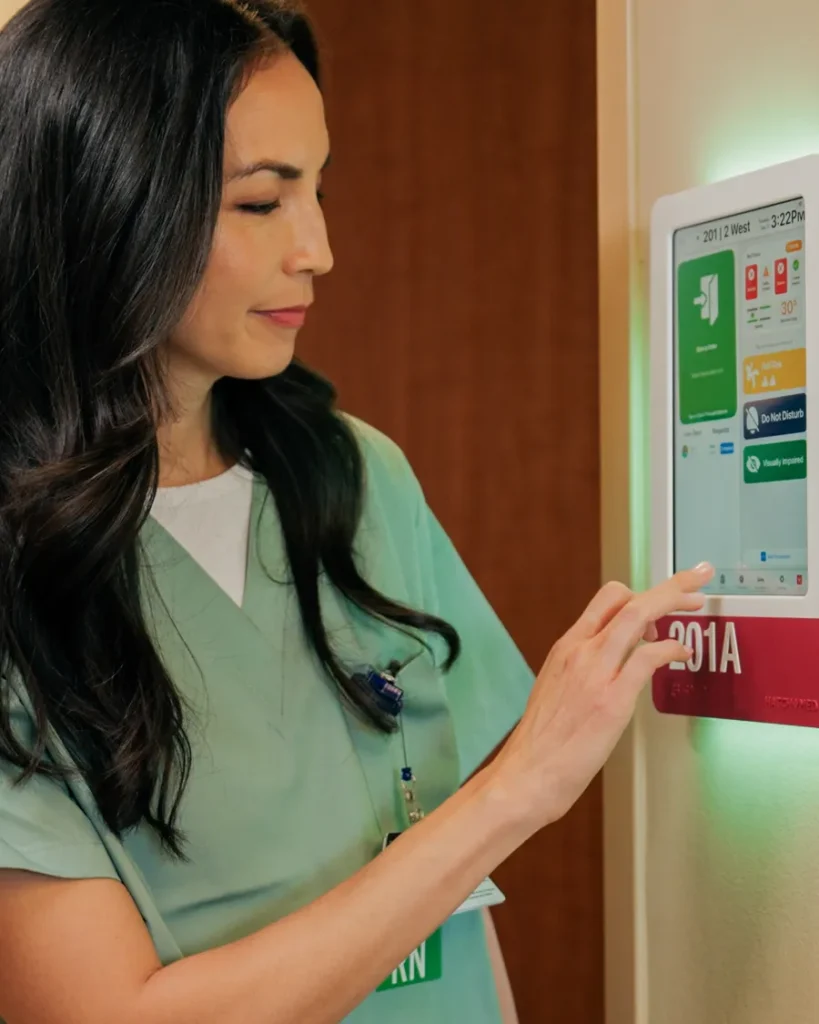
A nurse touches the screen of a HallMonitor sign for room 201A, glowing green.

Hardware built for hospitals

The only clinical door sign that is UL certified and FDA registered, with raised room numbers and ADA Grade 2 braille. One PoE+ cable supplies power and wired Ethernet.

Easily build patient and room priorities

Each sign takes in the complete picture of its room and turns it into one light, so staff can see which rooms need their attention from one end of the hallway.

Example light rules

Your clinical team defines the conditions and responses for each unit.

  1. Green: Patient is safe

    A steady, soft green light shows the room is stable and safe.

  2. Amber: Check on your next round

    Example: a non-urgent patient request is waiting.

  3. Red: Prompt attention

    Example: a fall-risk patient's bed brakes are not set.

  4. Pulsing pink: Immediate attention

    Example: a high fall-risk patient's bed-exit alarm is active.

Match your hospital's design

Choose an accent color and orientation to suit your interiors. The body and accent plate can be painted any color, so every sign fits your hospital's design standards.

Accent color
More accent & body colors
Orientation

Mounting, the badge reader, screen tiles and light rules are all in the HallMonitor configurator.

Configure HallMonitor

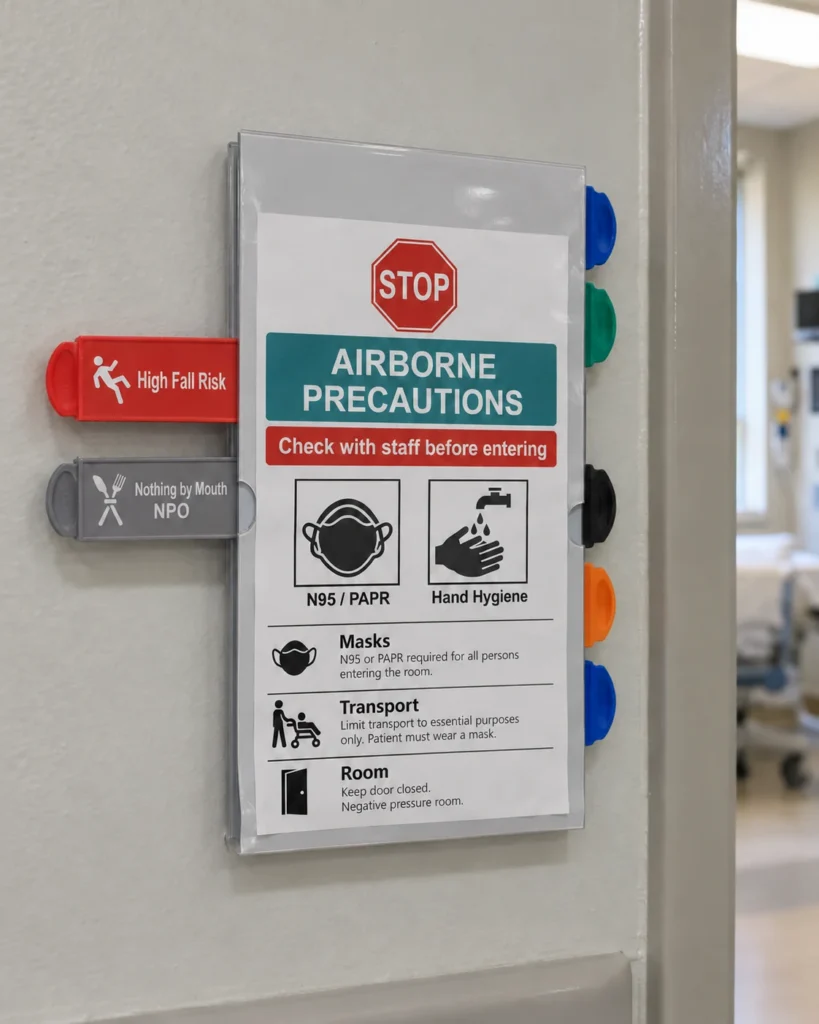
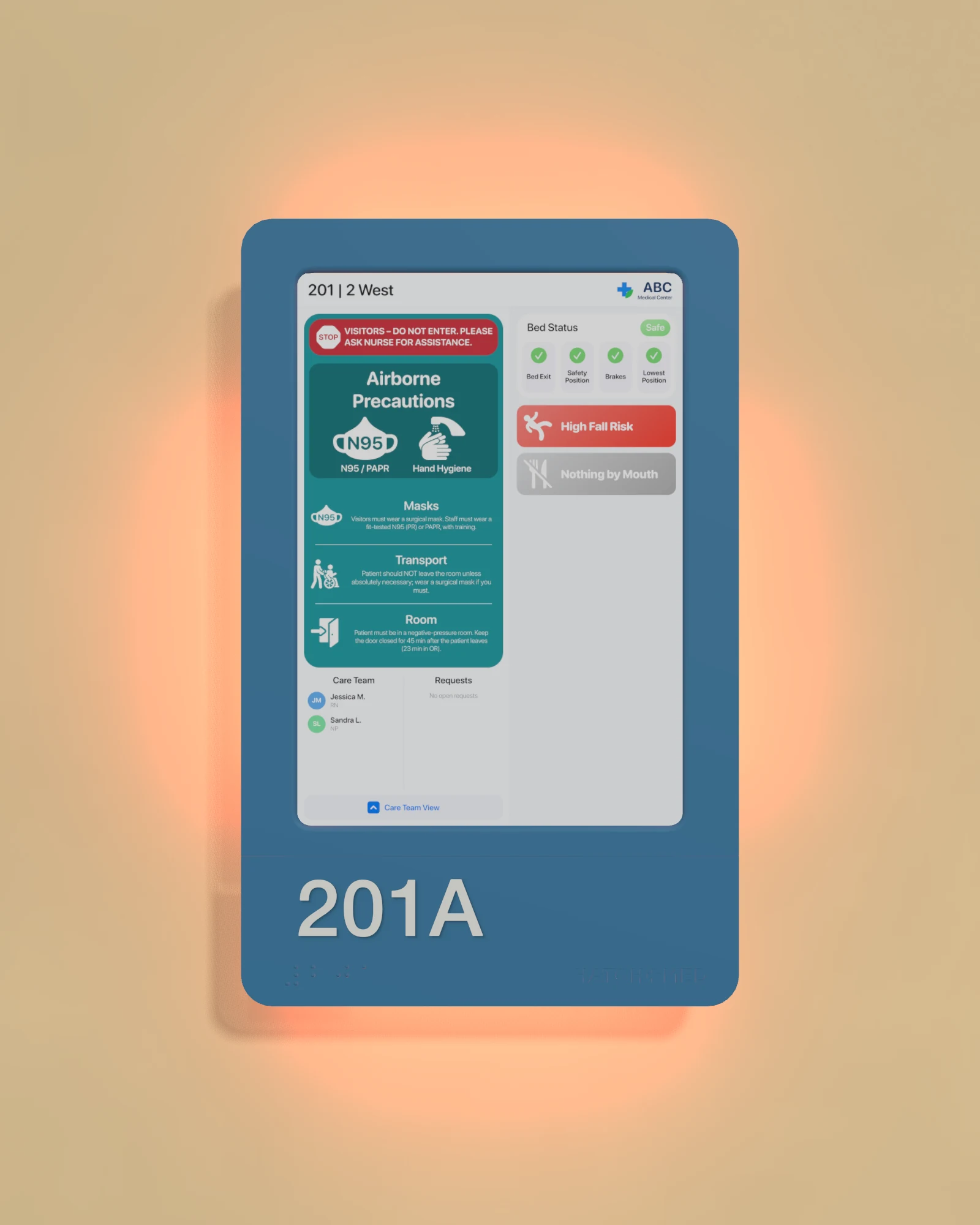
Keep the patient room signage your team already knows

We recreate your approved isolation and precaution signs on screen, preserving their wording, colors, and instructions.

An airborne precautions paper placard beside High Fall Risk and Nothing by Mouth flags.

Approved on paper

Blue HallMonitor on a warm golden wall, showing Airborne Precautions, High Fall Risk, Nothing by Mouth and the existing safe bed status.

Example on HallMonitor

Your signs, recreated

Keep your existing instructions and visual conventions. Standard isolation and precaution tiles are available too.

Critical information in any language

Display critical information in any language your staff use. Tiles update automatically with EMR changes, and your clinical team verifies the translations.

Setup and ongoing changes

Our clinical team and project manager help with initial setup. Your admins can then update tiles, colors, and light rules in the portal.

What staff see at the door

Sample HallMonitor screen

  1. Isolation and precautions

    From your EMR

    When isolation orders or precaution flags change in the EMR, HatchMed software updates the corresponding tiles.

  2. Bed status

    From the bed

    HighLightX shows the bed's nurse call connection when networked. Bed APIs add alarm settings, brakes, bed position, siderails, and backrest angle.

  3. Care team and requests

    From the EMR and nurse call

    Show the assigned care team from the EMR and patient requests from an integrated nurse call system.

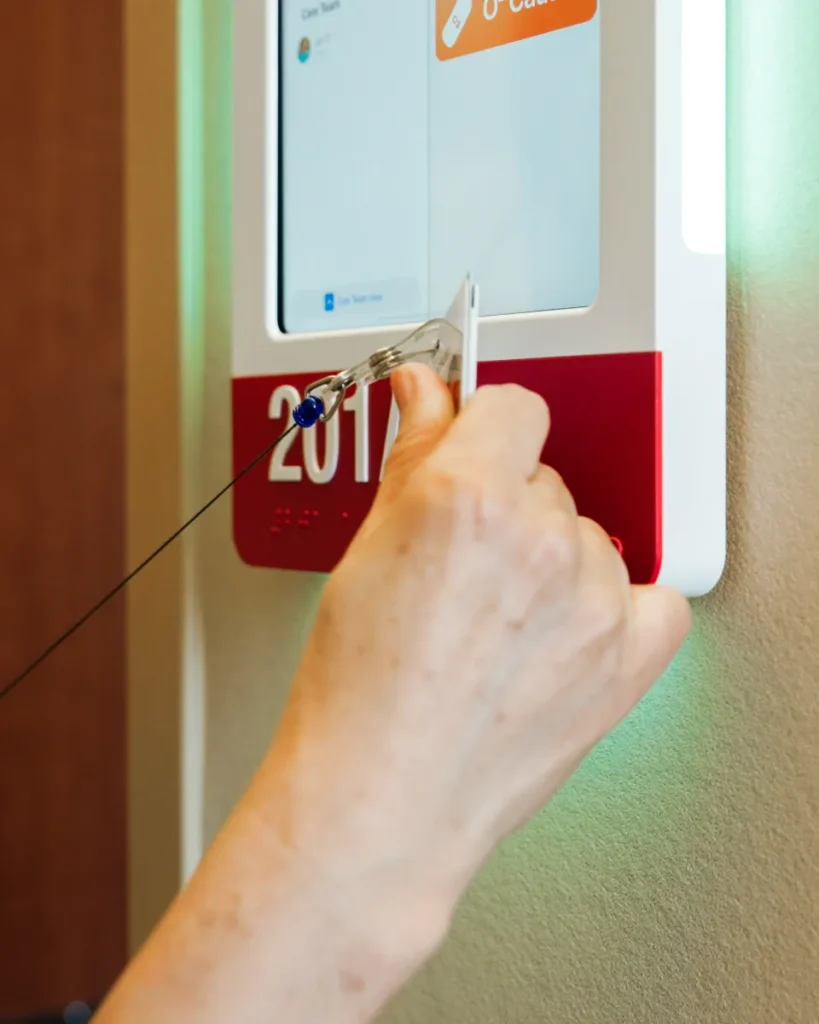
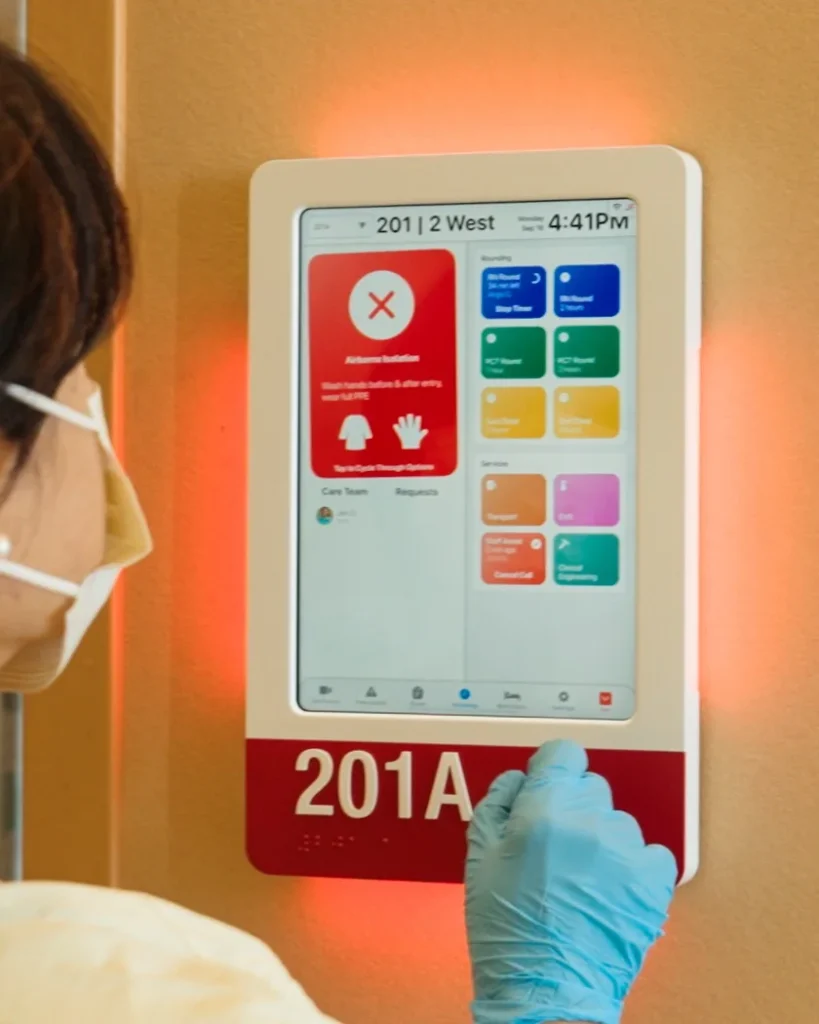
Tap a badge, update the room

An optional built-in RFID reader lets staff sign in with compatible badges and access the workflow controls available to their role.

Rounding and room status

Record rounding, mark the room clean, or update the patient’s mobility level at the door.

Updates outside the EMR

Set statuses that are not supplied by your EMR, such as See Nurse Before Entry, Privacy, or Procedure in Progress.

Role-based access and an audit log

Badge and PIN sign-ins are authenticated against your hospital’s Active Directory. Permissions control which updates each person can make, and edits are logged.

A nurse holds a badge on a retractable reel to a HallMonitor lit soft green.

Tap a badge

A nurse in an isolation gown and gloves taps a workflow button on a HallMonitor lit red for isolation.

Personalized workflow

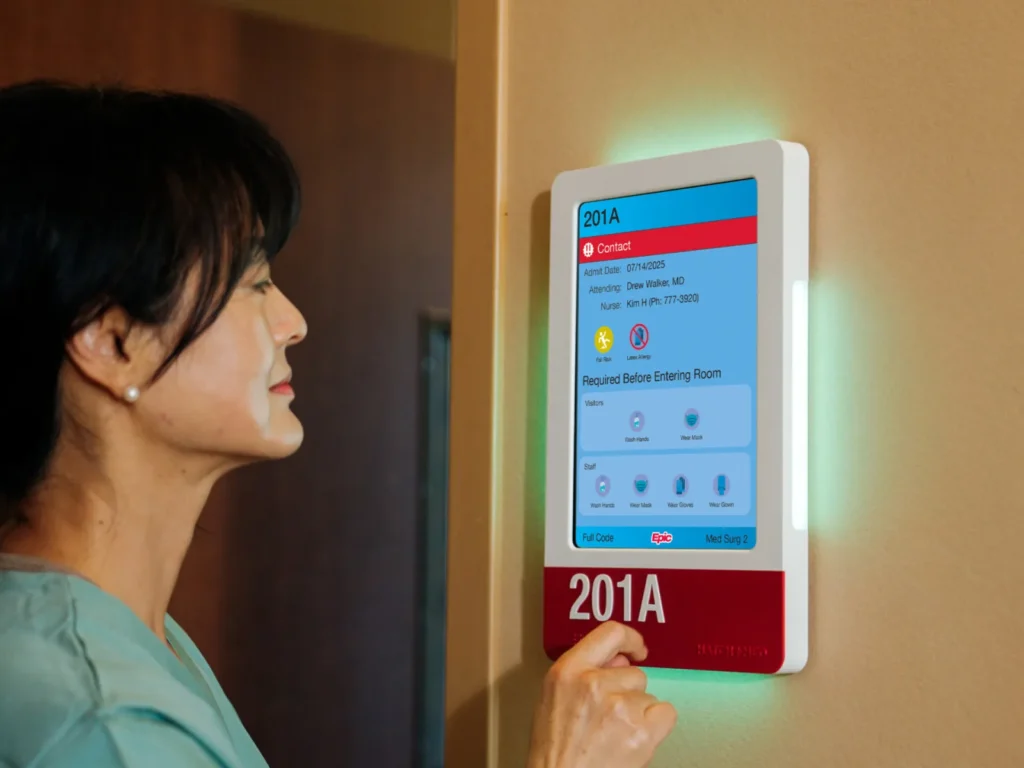
A nurse reads Epic Monitor's Room Display on a HallMonitor outside room 201A, its side panels lit green.

HallMonitor with Epic Monitor

Epic Monitor comes with most MyChart deployments and runs on HallMonitor’s iPad-based hardware. Your Epic team configures the Room Display and its rules. HallMonitor’s lights follow the display’s theme color, and patient data stays within the Epic deployment.

Epic and Epic Monitor are registered trademarks of Epic Systems Corporation.

A nurse checks a HallMonitor screen at the door of room 201A.

Time back at the bedside

Keeping paper door signs current pulls nurses away from patients every time something changes: check the chart, find the sign, tape it up. On an average 40-bed unit, HallMonitor gave about 380 minutes a day back to bedside care.1

That adds up to about 2,300 staff hours a year for patient care.1 The hardware and software paid for themselves in about 10 months.1

The light helps with safety too. After a hospital-wide rollout, care teams saw about 90% fewer accidental walk-ins to isolation rooms, because isolation status was visible from the hall.2

Your numbers depend on your units and workflow. The ROI calculator in the configurator works from your own unit sizes.

1 Based on average customer deployments on standard-size hospital units. Results vary with unit size and workflow.

2 Results observed on units with many isolation patients, as recorded by care team members and visitors entering rooms before and after HallMonitor replaced standard paper signs.

Installation and resources

Installation in four steps

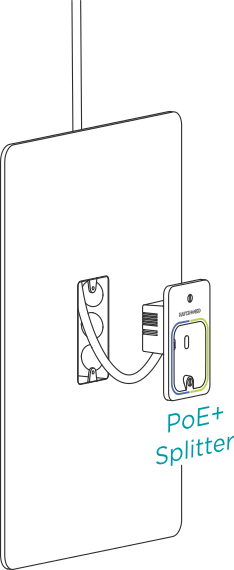
A PoE+ splitter connected to a single-gang back box in the wall.
1

Mount the splitter

Place the PoE+ splitter about 55″ above the floor, with room for the enclosure to fit over it. If code requires, use a 2-3/4″ deep single-gang back box in a 2″ x 3″ cutout.

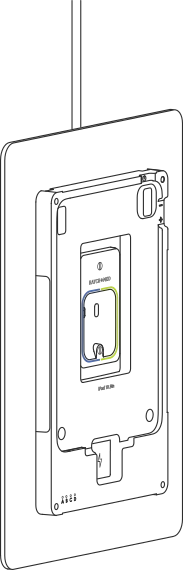
The HallMonitor back panel mounted on the wall over the splitter.
2

Connect and mount the back panel

Plug the PoE+ cable into the splitter and secure the splitter to the wall. Mount the back panel over it with the splitter centered, using wall anchors in drywall.

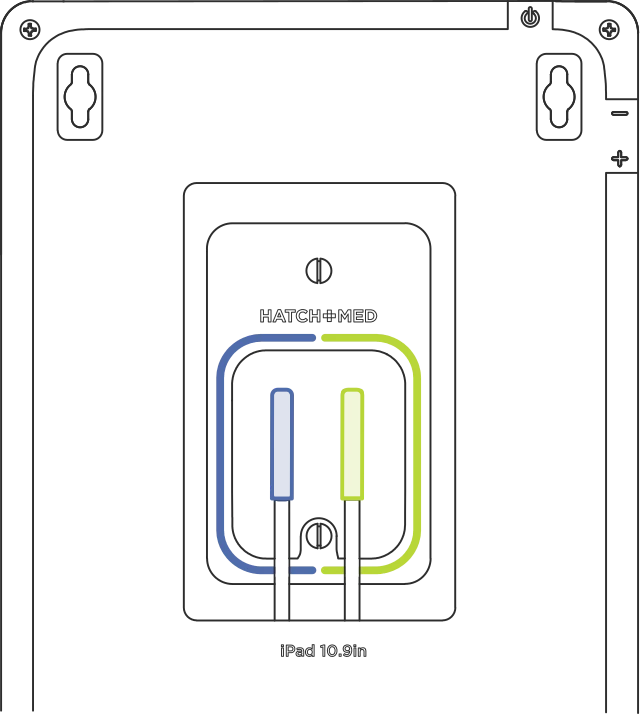
The blue cable in the left port and the green cable in the right port of the splitter.
3

Connect the lights

Plug the blue USB-C cable into the blue port and the green cable into the green port. The lights glow soft white.

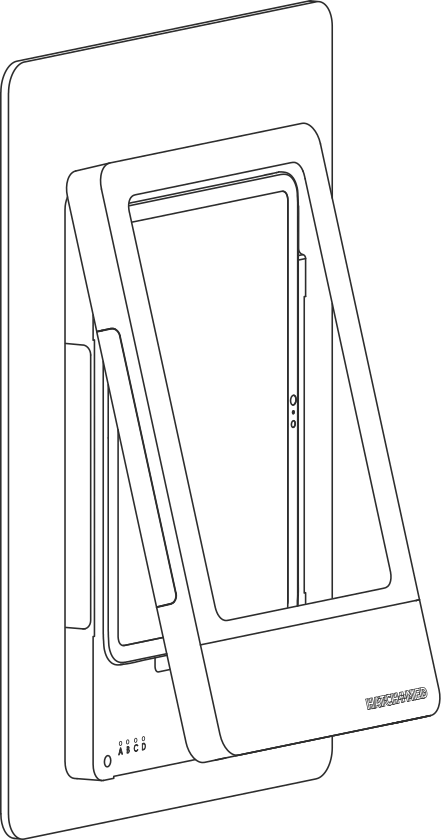
The front cover sliding onto a HallMonitor with the iPad in place.
4

Add the iPad and close it up

Press the iPad in and connect the charging cable. Slide the front cover on and secure it with the two screws at the bottom.

Network setup

Each HallMonitor runs on one PoE+ switch port, so set every port up the same way and test one sign before install day.

Switch port

  • PoE+ (802.3at), at least 30W per port
  • LLDP: Off
  • Force PoE+ on every port. On Cisco, use two-event classification.
  • Save to the startup config so it survives a power cycle

Splitter light

  • Solid blue: ready
  • Solid red: PoE only. Set the port to PoE+.
  • Off or slow red blink: contact techsupport@hatchmed.com

Test one sign first

  • Plug in the splitter. The light turns blue.
  • Connect the iPad. It charges and goes online, and the lights glow soft white.
  • Leave it running for 24 hours.

Send us your switch make and model and we’ll send its settings. Non-PoE installs run on AC power with Wi-Fi.

EMR integration

HatchMed software reads the HL7 feed your EMR already sends, while Epic Monitor keeps data and rules in Epic.

  1. Your EMREpic, Cerner or another EMR
  2. HatchMed cloudOne for each hospital
  3. HallMonitorThe iPad at each door

What we read

  • Patient, room and bed
  • Care team
  • Isolation, precautions and allergies
  • Orders, including diet

How it's secured

  • Site-to-site IPsec VPN with two tunnels
  • Encrypted at rest and in transit
  • A single-tenant cloud for each hospital
  • Sign-in with SSO and MFA, badge or PIN at the door

Patient data

  • Pulled in real time
  • Kept only for the current stay
  • Purged on discharge
  • U.S.-based data and support

With Epic Monitor, you need Epic May 2025 or later (May and August 2025 need special updates), and your Epic team sets the colors with CER rules.

Epic and Epic Monitor are registered trademarks of Epic Systems Corporation.

MDM setup

Your team manages the iPads through your own MDM, and Epic Monitor deploys through it too.

Apps

  • Install HallMonitor and HatchMed Tester from the App Store
  • Update them when we ask

iPad settings

  • Night Shift, True Tone and Auto-Brightness: Off
  • Auto-Lock: Never
  • Wired accessories: Always allow

App configuration

  • Serial number as the MDM ID
  • Login username and password
  • Remote diagnostics, On by default

Send us each iPad’s serial number with its room name, and we assign every sign to its room.

What's in the box

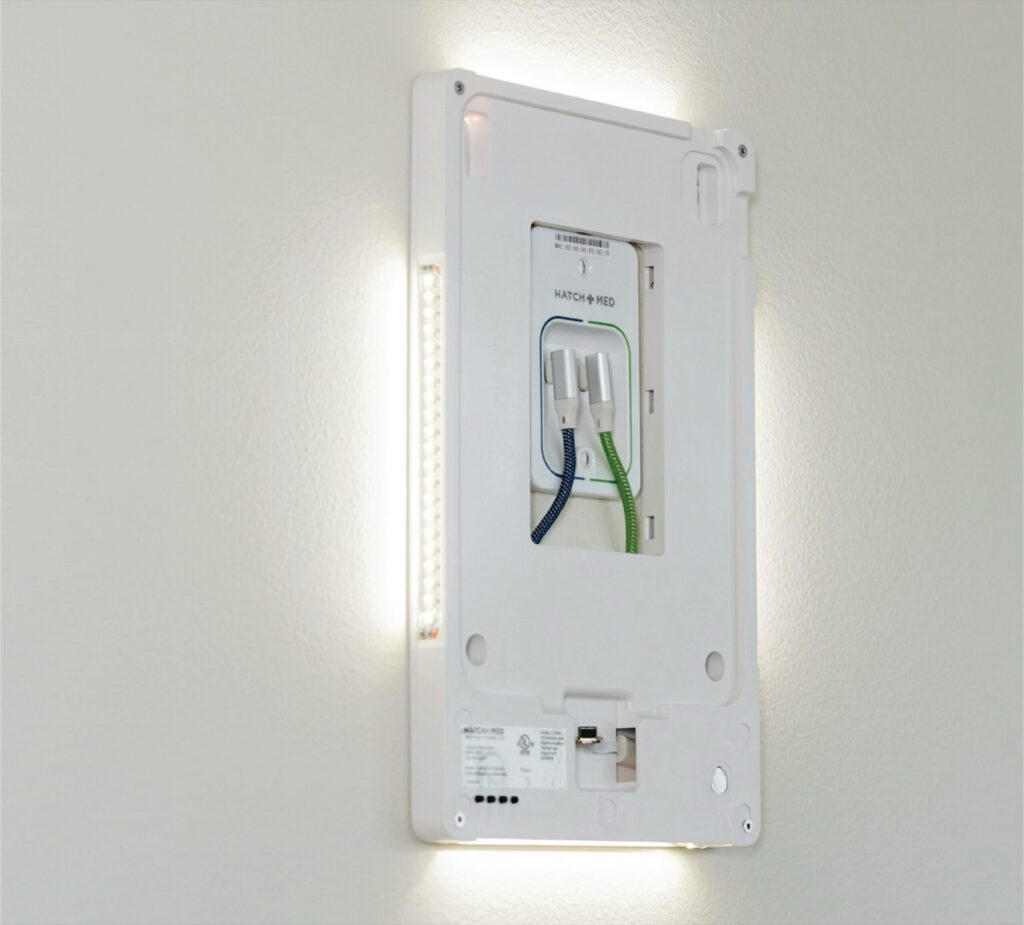
The back panel of a HallMonitor mounted over its PoE+ splitter, with the light panels glowing white.
  • HallMonitor enclosure
  • PoE+ splitter
  • Drywall and stud mounting hardware

iPads are bought separately.

Downloads & Resources

HallMonitor PLUS guide

Specs, finishes, mounting and the base and PLUS options.

Installation guide

Mounting, power and setup, step by step, for installers.

HallMonitor with Epic Monitor guide

How Epic Monitor runs on HallMonitor and drives the lights.

Software customization guide

Tiles, precautions, rules and light options in HatchMed software.

Site setup guide

Network PoE+ requirements and Epic Monitor LED setup.

Epic and Epic Monitor are registered trademarks of Epic Systems Corporation.

Hardware details

A portrait HallMonitor for room 201A with a soft amber glow on all sides.

Size and mounting

Dimensions
8.07" W x 12.77" H x 0.91" D
Weight
2.0 lb without iPad, 3.1 lb with iPad
Supported iPads
10.9" and 11" iPad, 10th and 11th generation (A16)
Mounting
Over the PoE+ splitter, with a single-gang back box where code requires it, with a 150 mm / 100 mm keyhole and screw pattern.

Power and network

Power and data
PoE+ (802.3at): power and wired Ethernet over one cable. Or a 24V power supply with iPad Wi-Fi.
Power draw
About 20W peak while the iPad fast-charges. About 12 to 15W in standard use.
If power drops
The iPad keeps the lights on at reduced brightness. HatchMed software keeps the last data on screen with an "Info May Be Out of Date" notice.

Light and iPad

Illumination
RGBW LED panels on all four sides, individually addressable, with dimming and animation. Off by default.
iPad features
Wi-Fi, Bluetooth, cameras, speakers, microphones and screen keep working.

Build

Materials
UV-resistant painted ABS body, Lexan illumination panels
Enclosure
Magnetic front panel for iPad service, optional hidden security screws, and a modular USB-C design that can be upgraded as iPads change.
Cleaning
Standard hospital surface wipes
Room number and braille (PLUS)
Raised room number and ADA Grade 2 braille on a magnetic plate, designed and manufactured to meet the 2010 ADA Standards for Accessible Design. Plate 2.44" (61.9 mm) tall, characters 1.16" (29.4 mm), braille band 0.28" (7.1 mm).
RFID badge reader (optional)
HID OMNIKEY module. Reads most staff and ID badges.

Certification and warranty

Regulatory
UL/cUL IEC 62368-1:2014. FDA Registered Medical Device, Class 2 Exempt.
Warranty
One-year standard warranty. Extended Warranty and the Product Upgrade Plan are available.
Patents
US20210051223A1, US20220051532A1

Frequently asked questions

Something we didn’t cover? Call 844-428-2463 or email info@hatchmed.com.

What is a digital door sign for hospital rooms?

A digital door sign is a screen and a light outside each patient room that replace paper hospital door signage. HallMonitor holds an iPad in a wall-mounted enclosure framed by four RGBW light panels, and shows color-coded room status from clinical rules your hospital defines. It’s the only clinical door sign that is both UL certified and FDA registered.

Which iPads work with HallMonitor, and do we buy them separately?

HallMonitor holds the 10.9-inch and 11-inch iPad, 10th and 11th generation (A16). iPads are bought separately, so your IT team keeps control of the fleet, MDM enrollment and refresh cycles.

Which EMRs does it work with?

Any EMR that sends HL7, including Epic and Cerner. HatchMed software reads your existing HL7 v2 feed without asking you to change it, and FHIR is available on request.

Which software runs on it?

HatchMed’s own ComCierge software, Epic Monitor, and signage from eVideon Vibe, GetWell and pCare. One signage app runs on each sign. They’re App Store apps, so you can change software later and keep the hardware.

Can we set our own colors and alerts?

Yes. With HatchMed software, each alert has its own title, icon, color, text, priority and light behavior, and your team decides what each color means. With Epic Monitor, your Epic team sets the light colors through Epic’s CER rules.

Does patient data pass through HatchMed?

It depends on the software. With HatchMed software, your HL7 feed reaches HatchMed’s single-tenant AWS cloud over a site-to-site VPN, encrypted in transit and at rest and cleared at discharge. A security review is part of onboarding. With Epic Monitor, patient data stays in Epic.

Which Epic versions work with Epic Monitor on HallMonitor?

Epic May 2025 or later. The May and August 2025 versions need a special update, and November 2025 and later work by default.

What happens when a new iPad comes out?

The enclosure has a modular USB-C design, so it can be upgraded as iPads change. HallMonitor has a one-year standard warranty, and the optional Product Upgrade Plan includes one upgrade within its three-year term.

Epic and Epic Monitor are registered trademarks of Epic Systems Corporation.

See HallMonitor on your units

Tell us about your units and what you’d like to do with HallMonitor.

Home Page